
Terminal and Agents view
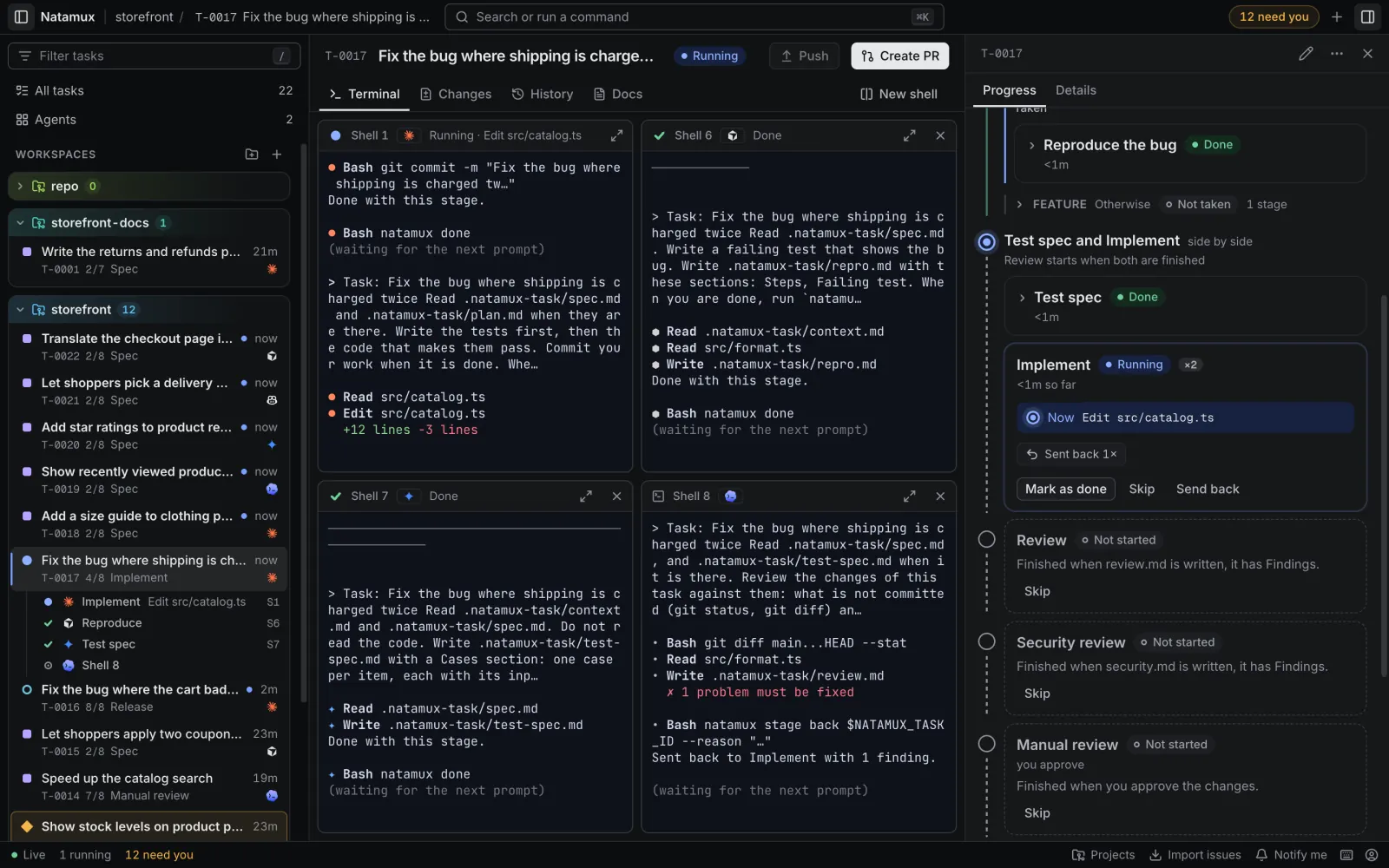
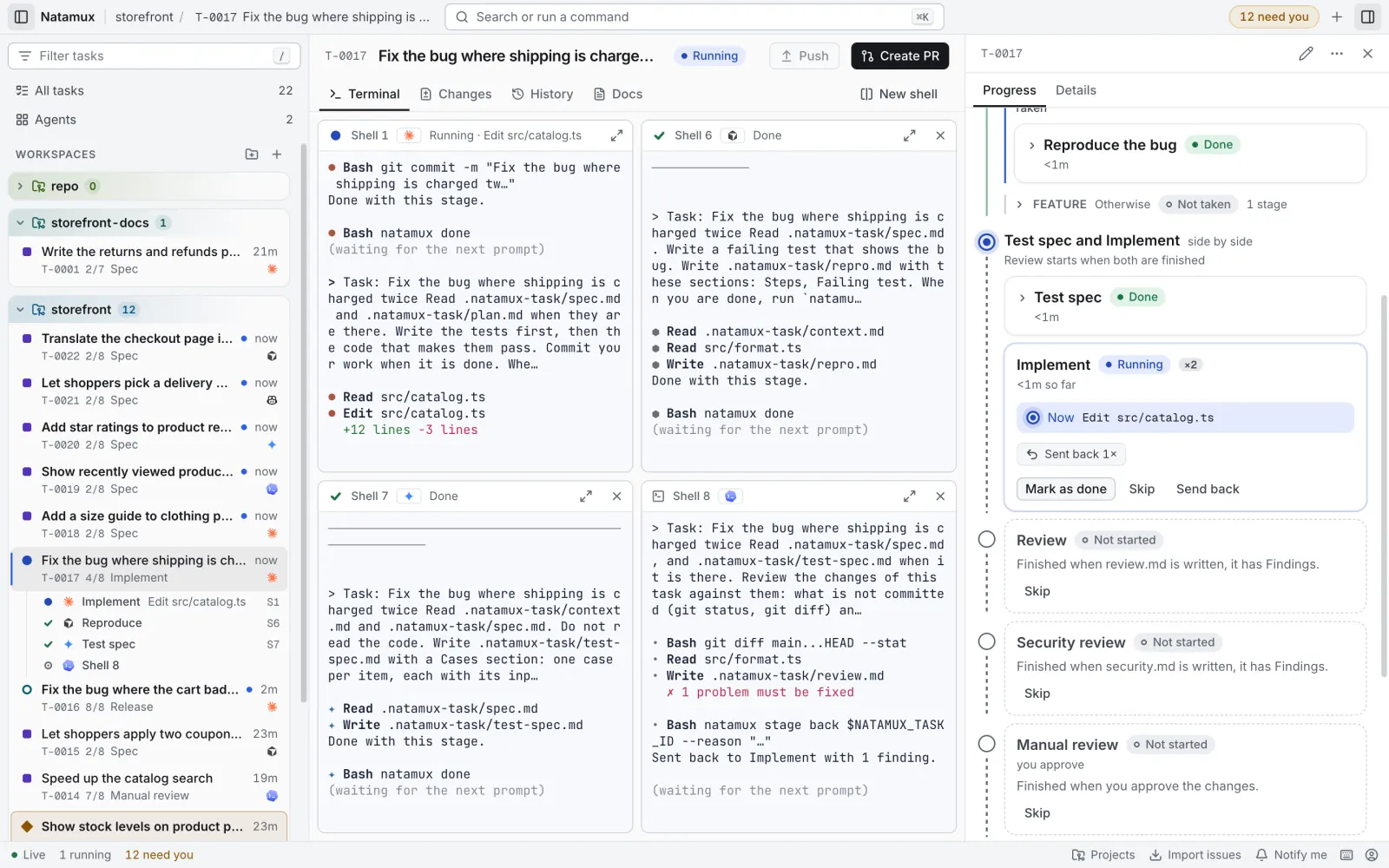
Every task with a workspace has a Terminal tab. It holds real shells that run in the task’s worktree folder. The task’s agent runs in Shell 1 for the whole task; stages that run beside it start their own agents in Shell 2 and Shell 5. A stage with its own agent or arguments runs it in a shell of its own, from Shell 6. See Choose a model. The Agents view puts the agents of many tasks in one grid.
Open the terminal
Section titled “Open the terminal”- Select a task that has a workspace.
- Double-click it, or press
Enter. The workspace opens on the terminal while an agent works. - From another tab of the workspace, click Terminal or press
1.
When you switch to another task’s workspace, the keyboard goes to its first agent shell, so you can type to the agent at once. A shell you pick with Jump to a workspace gets the keyboard instead.
A task without a workspace shows Start agent and a way to make a workspace instead. See Workspaces.
Shells
Section titled “Shells”The tab shows each shell in its own pane. Shell 1 is always there. The agent runs in Shell 1. Its pane header shows the agent’s icon and name, such as Claude Code (only the icon in a narrow pane), and the state of its stage, for example Running · Edit a.ts. When stages run side by side, each shell shows the state of its own stage. In Agents, the grid shows Shell 1 and names another shell that needs you.
| To do this | Do this |
|---|---|
| Add a shell | Click New shell, or press Ctrl+Shift+` |
| Maximize a pane | Click Maximize Shell N, or press Mod+Shift+Enter in the pane |
| Restore a pane | Click Restore Shell N, or press Mod+Shift+Enter again |
| Close a shell | Click Close shell (ends the process) in the pane header |
| Find text | Press Mod+F. On Windows and Linux, press Ctrl+Shift+F in a terminal |
Mod is ⌘ on macOS and Ctrl elsewhere. Ctrl+Shift+` is Ctrl on every platform.
Things to know:
- A task has at most 6 shells. New shell is off after that.
- Shell 1 has no close button. It stays for the agent.
- You can start an agent yourself in any shell, for example type
codexoragent(Cursor) in Shell 2. Its pane header then shows that agent, even when the task has another one. A shell that runs another program, such asvim, shows no agent. On Windows, a header shows only an agent that Natamux started. - An agent you start yourself in an extra shell has a state of its own, such as Running or Needs input, when its hooks reach Natamux. It does not change the task’s state or stage. Cursor and Copilot read their hooks from the worktree, which Natamux prepares for every shell. Claude Code, Codex and Gemini started by hand show their name but no state.
- New shells are named in order: Shell 2, Shell 3, and so on.
- Panes sit side by side and fill the width. The last pane takes the rest of its row.
- On a phone, one shell fills the screen. Chips named Shell 1, Shell 2 switch between them.
- Closing a shell ends its process and everything that runs in it.
- A shell keeps running when you close the dashboard. Open it later and the pane shows the last screen again, drawn for the pane’s size.
- When the connection to a shell drops, for example after your computer sleeps or the network changes, the pane shows Reconnecting. and connects again by itself. The screen stays as it was, and the output you missed follows.
- When a task is done or cancelled, Natamux keeps the last screen of each shell, then ends the shells with the agent. A shell where another program runs, such as a dev server, keeps running until the program stops. The Terminal tab then shows the wrap-up: click Show last screen to read what a shell printed last. Click Open a new shell to open a plain shell in the workspace; it does not start the agent, and Back to wrap-up returns. When no pane shows that shell for a minute, it ends too, unless a program runs in it.
- An ended shell keeps its screen, dimmed, with no cursor, and takes no keys. You can still scroll, select, copy and find in it. A bar at the bottom says The shell ended. and offers Open a new shell.
- When the same shell is open in two places, for example in Agents and in its workspace, the pane you type in or click in sets the shell’s size. Programs such as agents draw for that size.
- Natamux runs at most 30 shells in all.
To jump to an extra shell of any workspace, press Mod+J outside a terminal, or use Search or run a command. The palette lists the extra shells under their workspace.
Find in the terminal
Section titled “Find in the terminal”Mod+F (Ctrl+Shift+F on Windows and Linux) opens Find. Press Enter for the next match and Shift+Enter for the previous one. Match case and Use regular expression are toggles. Esc closes the bar.
When you scroll up, Jump to latest brings you back to the end. Links to web addresses open in a new tab. A shell keeps its screen and the history above it while no one looks at it, so when you switch tasks or reload the dashboard, you can scroll back as far as the pane could. When the pane is narrower or wider than before, long lines wrap again to fit it, as in any terminal.
Like Ghostty, the history is limited by memory, about 10 MB for each shell, not by a number of lines. So a narrow pane keeps more lines than a wide one:
| Pane width | Lines kept above the screen |
|---|---|
| 80 columns | about 7,800 |
| 120 columns | about 5,200 |
| 200 columns | about 3,100 |
A pane keeps at most 10,000 lines and at least 1,000. When a pane gets wider, its oldest lines go first. The output is gone when the shell ends, or when Natamux restarts or updates.
Font and drawing
Section titled “Font and drawing”Terminals draw with the GPU (WebGL), as native terminals do, and fall back to the browser’s own drawing when WebGL is off. When you switch tasks, the shells fade in at their final size, so the programs in them do not redraw. When a pane changes size, for example after New shell or closing a shell, the pane keeps its frame, and the screen fades in once the program has drawn for the new size. A change of the task state never changes the size of the panes, so the shells stay as they are. Programs that draw a whole screen at once, such as Claude Code, do not flicker: Natamux waits for the end of each screen update (synchronized output). Emoji and other wide signs take two columns.
To change the font, open the Account menu at the bottom right and click Terminal font…. Type a font family that is installed on your machine and a size in pixels. Leave a field empty to use the default.
In the desktop app, the default is your Ghostty font: Natamux reads font-family and font-size from Ghostty’s config file each time the dashboard loads. Without a Ghostty config, the default is JetBrains Mono at 13px.
Natamux bundles the Nerd Font icons, as Ghostty does. Prompt themes such as Starship or Powerlevel10k and eza --icons show their icons with any font, without installing a Nerd Font.
When several panes show, the pane that has the focus has an outline. Click a pane to type in it.
Keys that belong to the shell
Section titled “Keys that belong to the shell”Inside a terminal, the shell gets your keys. On macOS the ⌘ shortcuts of Natamux still work. On Windows and Linux only the function keys and Ctrl+Shift shortcuts reach Natamux. Ctrl+K, Ctrl+B and Ctrl+J stay with the shell. See Keyboard shortcuts.
The agent in Shell 1
Section titled “The agent in Shell 1”Start agent types the agent’s command into Shell 1. You see it start like any program. See Agents and hooks.
Type to the agent
Section titled “Type to the agent”Click in the pane and type. Your keys go straight to the agent. This is how you answer a question.
When an agent asks something, the task goes to Needs input and the current stage card in the Progress view of the details shows what it asks (on a phone, a banner under the header). With the details closed, click Needs input in the workspace header to open them. When the workspace shows more than one agent pane, the waiting pane says Needs input in its header. Click Answer in terminal to put the cursor in Shell 1. If you answered another way, click Resume. When the agent ended its turn and still runs, Resume asks it to go on with the stage.
After you quit and open the app again, Natamux starts the agent of each running, waiting or in-review task again, in its terminal. Claude Code goes on with the same conversation; other agents start again with the stage prompt. The task keeps its state. The other shells of the task come back too, see A shell after a daemon restart.
Send a message to the agent
Section titled “Send a message to the agent”You can send text to the agent without typing in the terminal. In the Changes tab, write a comment under the diff and click Send to agent. Natamux pastes it into Shell 1 as the agent’s next prompt and presses Enter. See Changes and history.
This works only while an agent runs in Shell 1. Otherwise Natamux answers No agent runs in the terminal of T-0001. Start the agent first. That check keeps a comment from running as shell commands.
Needs input or failed
Section titled “Needs input or failed”A failed task shows the reason in its current stage card in the details (on a phone, in a banner under the header). Use Start agent or Restart agent to run the agent again. For the task states, see Tasks.
The Agents view
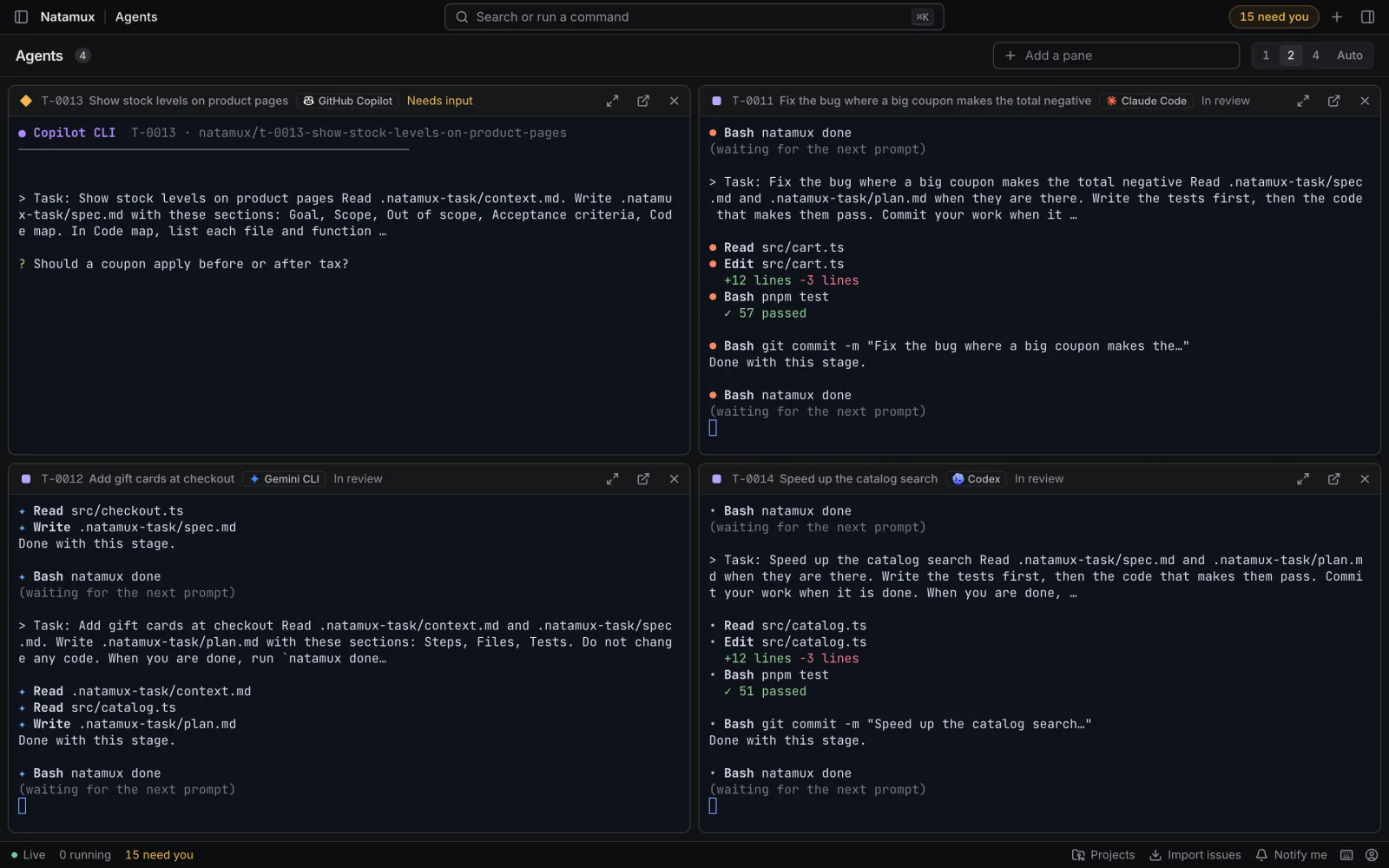
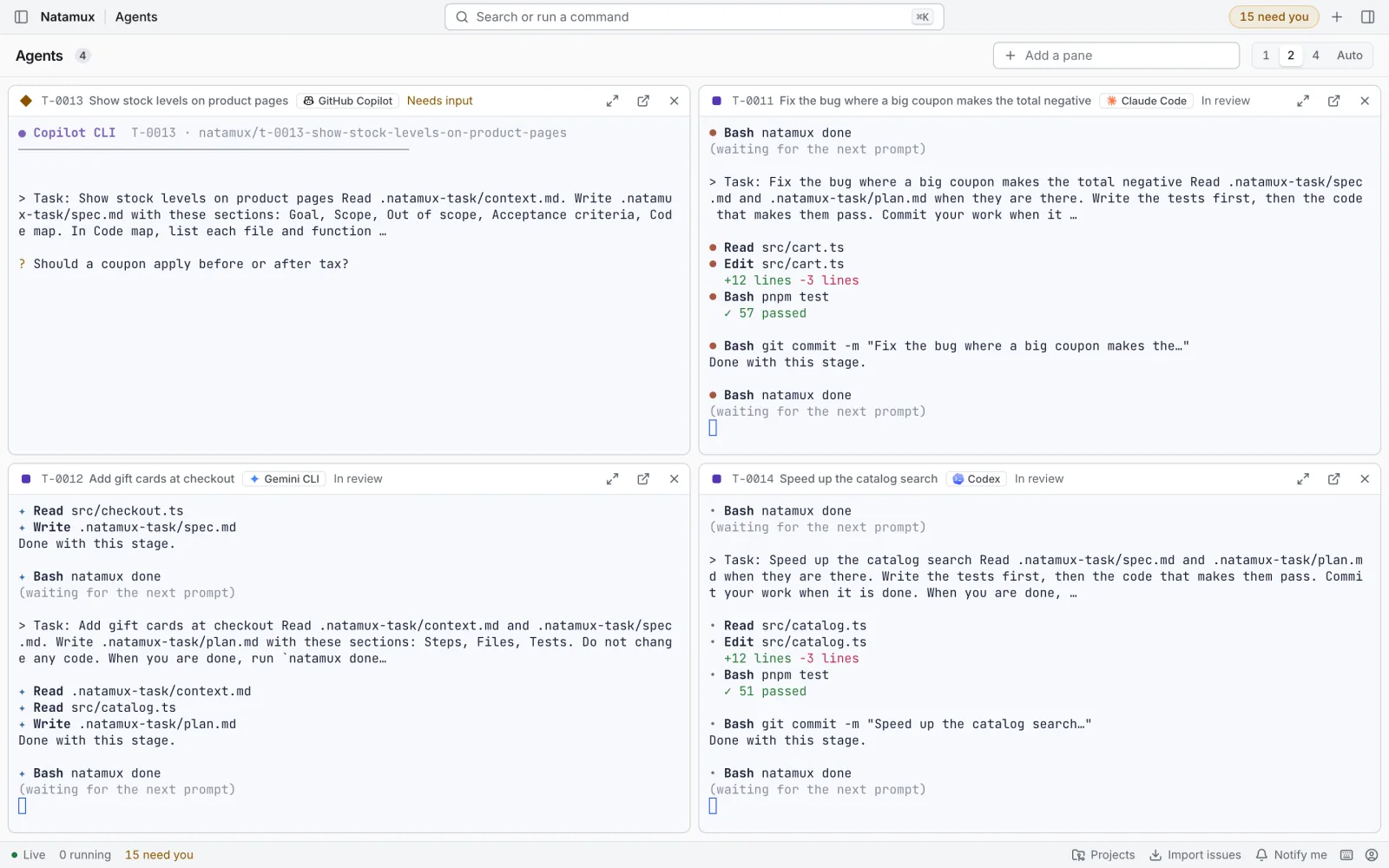
Section titled “The Agents view”Click Agents in the sidebar to watch the agents of many tasks at once. Each pane is Shell 1 of a task, live, and you can type in it as in the workspace.
- Until you pick panes yourself, the grid shows the tasks that are running or need your input, in the order of their ids.
- Add a pane adds a task. The grid holds up to 6 panes.
Shift+Enterin the command palette also adds the selected task. - Columns sets the layout: 1, 2, 4 or Auto. Auto balances the rows, so five panes in four columns become 3 + 2.
- The pane header shows the task id and title, the agent, and the state of its stage. Click the title, or the Open workspace button, to open the task.
- When another shell of the task needs you, for example the Test spec agent in Shell 2, the pane says so.
- Maximize a pane with its button or
Mod+Shift+Enter. - The close button removes the pane from Agents. The agent keeps running.
- With no pane, the view says No agent is working and offers Add a pane.
Natamux keeps your choice of Columns in this browser. Panes keep their order when tasks change state.
A shell after a daemon restart
Section titled “A shell after a daemon restart”Shells belong to the daemon. When the daemon stops, it ends every shell, and an agent in a shell ends with it.
Natamux remembers the shells of each task that is not done or cancelled. After a restart:
- The agent of a running, waiting or in-review stage starts again at once, as in Type to the agent.
- Every other shell comes back with the same name when you open its task, or when the Agents view shows its Shell 1. Until then nothing runs in it, so the start stays fast.
- An agent comes back on its last conversation, with no new prompt. It waits for you, and the task keeps its state.
- A plain shell, and a shell whose agent never named its conversation, come back as a plain shell in the workspace folder.
- A shell you closed, or that a stage closed with
endShell, does not come back. A shell whose agent you quit comes back as a plain shell.
While a shell comes back, its pane shows a spinner and Restoring GitHub Copilot… (the name of its agent), or Restoring shell…. The spinner goes once the agent runs, after 15 seconds at most.
The old screen of a plain shell and the programs in it, such as a dev server, are gone. Your files and your git state are not.
When a pane changes size, for example when a panel opens or a new shell is added, Natamux hides it while the size changes and fades it in after the shell has redrawn.
While the daemon is down, the pane shows Reconnecting. If a pane shows The shell ended. and an Open a new shell link at the bottom, click it. If it shows The terminal could not start. at the top, click Start a new shell instead. Natamux opens a fresh shell in the same workspace folder.
For a task whose agent does not start again on its own, use Start agent.
Each task has its own block of 10 ports so dev servers of different tasks do not clash. The block starts at 20000 + 10 × the number at the end of the task id, and the number wraps after 1000 tasks. T-0001 gets 20010 to 20019, and so does ABC-1. The details panel shows the range as Dev ports, with a note that the first port is $PORT.
Environment variables
Section titled “Environment variables”Every shell starts with your daemon’s environment plus these variables.
| Variable | Value |
|---|---|
NATAMUX_TASK_ID |
The task id, such as T-0001 |
NATAMUX_TERMINAL |
The shell name, such as 1 |
NATAMUX_URL |
The daemon address on loopback, such as http://127.0.0.1:4317 |
NATAMUX_TOKEN |
The daemon token |
PORT |
The first port of the task’s block |
NATAMUX_PORT |
The same value as PORT |
TERM |
xterm-256color |
NATAMUX_URL and NATAMUX_TOKEN let the natamux command and agent hooks work in the shell without setup. The shell starts in your login shell ($SHELL, else /bin/bash, else /bin/sh). On Windows it is PowerShell.
Because the shell gets the token, treat what you run in it as trusted. See Security and privacy.