
Quick start
This walk-through uses the desktop app and one agent. Starting a task and reaching the first approval takes about ten minutes, and most of that is the agent working. The rest depends on your task and your agent: the default pipeline waits for you three times, then an agent reviews the work. You need the requirements and a git repository you can experiment in.
Add a project
Section titled “Add a project”Open Natamux. The app starts its daemon and opens the dashboard, already signed in. On the first launch there is no project yet, and the sidebar says No projects yet.
- Use File → Add Project… (
Cmd+Shift+Oon macOS,Ctrl+Shift+Oon Linux). You can also click Add project in the sidebar and type the folder, or pick it with Browse…. - Pick the top folder of the repository, the one that holds
.git. Natamux warns you if the folder is not a git repository.
Add more projects the same way, at any time.
Start a task
Section titled “Start a task”You have two ways to start.
- Add a task puts an idea in the backlog. Type a title in the field “Add a task to the backlog” (press
n) and press Enter. - Start a task starts work right away. Click the + button in the title bar, or press
c.
For this guide, use Start a task.
- Enter a Title, for example
Fix the login redirect. - Pick the Project to work in.
- Pick an Agent, or “No agent, a plain shell”.
- Click Start task. Natamux makes a task, a git worktree and a branch, and starts the agent in the task’s terminal.
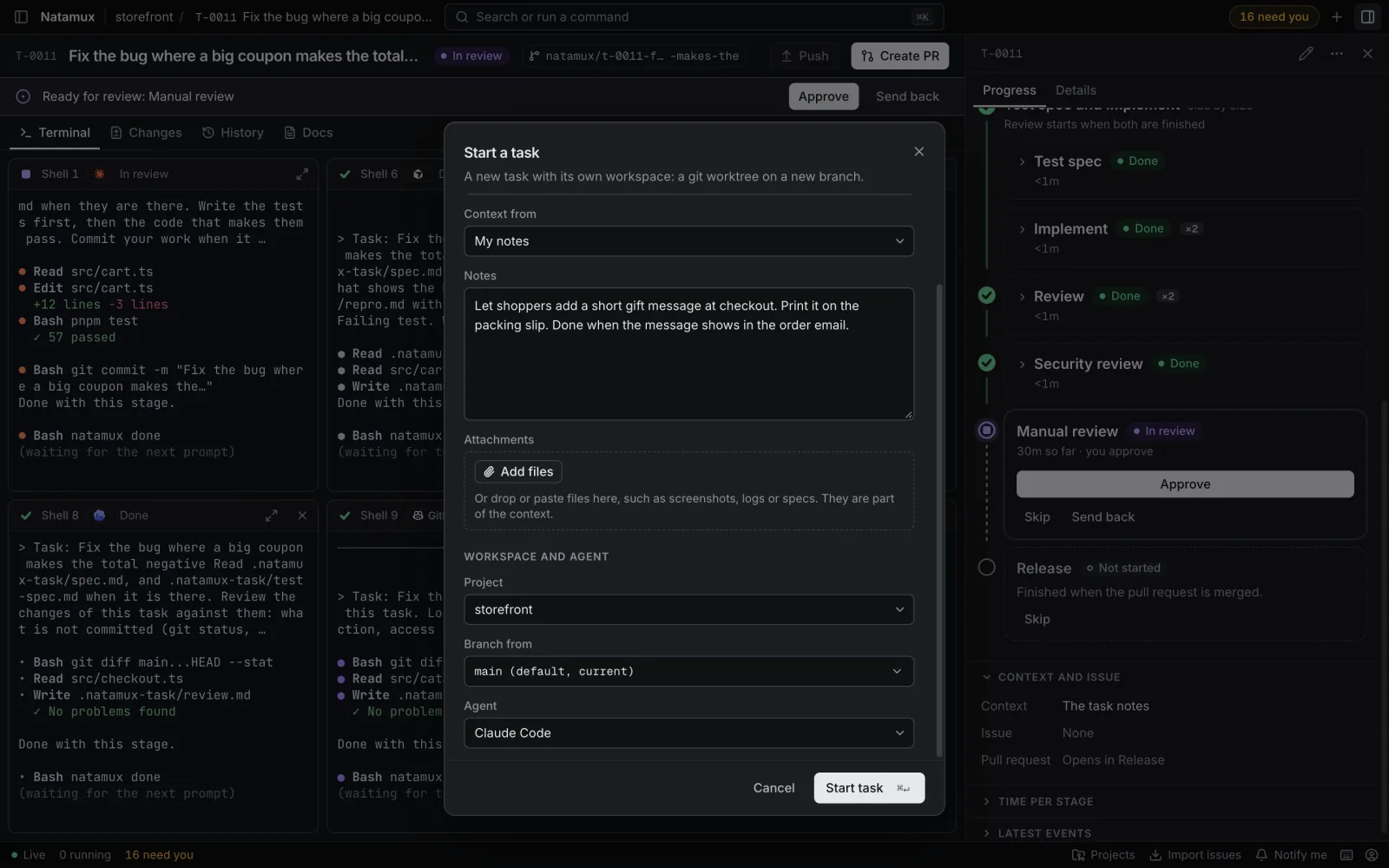
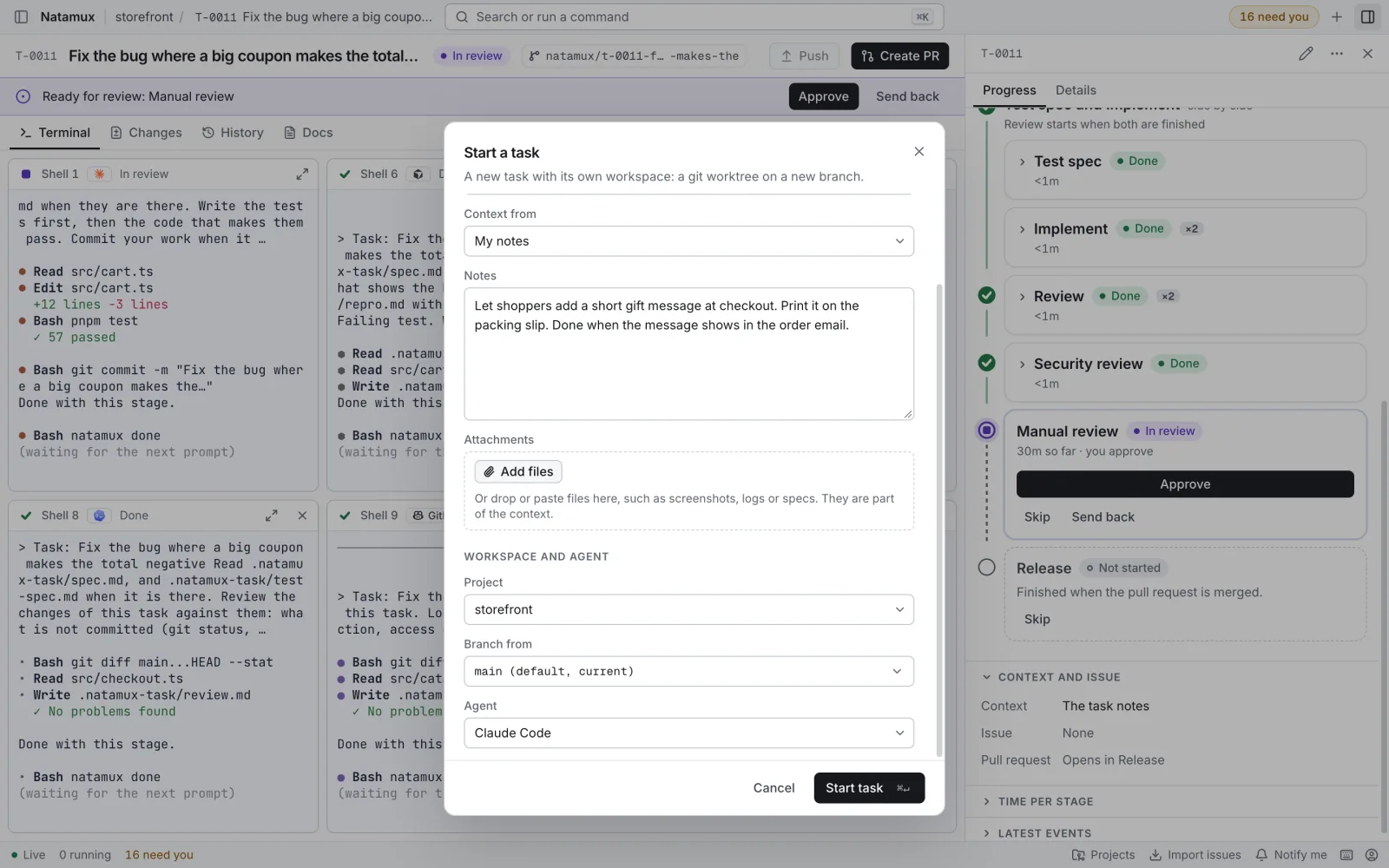
The dialog has two groups. Context is what the agent reads as the task’s context. The line under the heading says what that is for the source you pick. Workspace and agent is where and how the task runs.
Every field of the dialog
| Field | What to enter |
|---|---|
| Context from | Where the context comes from: My notes, A GitHub issue, or An agent skill when an agent has a skill. It shows when there is more than one source |
| Skill | With An agent skill. Click Pick a skill and choose the skill that reads the context |
| Notes | Optional, with My notes. What to change and why, where to look, and how to tell it is done |
| Reference | With any other source. The issue, ticket or record to read, for example #42 |
| Attachments | Optional. Screenshots, logs or specs. Click Add files, drop them, or paste a screenshot |
| Project | The project to work in |
| Branch from | The branch to start from. It defaults to the default branch, such as main. Natamux fetches it first, so the task starts from its newest commit |
| Agent | Pick an agent, or “No agent, a plain shell” |
If you added a task to the backlog first, open it and click Start agent (or Start task with no agent if you only want a shell).
Watch the agent work
Section titled “Watch the agent work”Open the task. The Terminal tab shows the agent running in the task’s worktree.
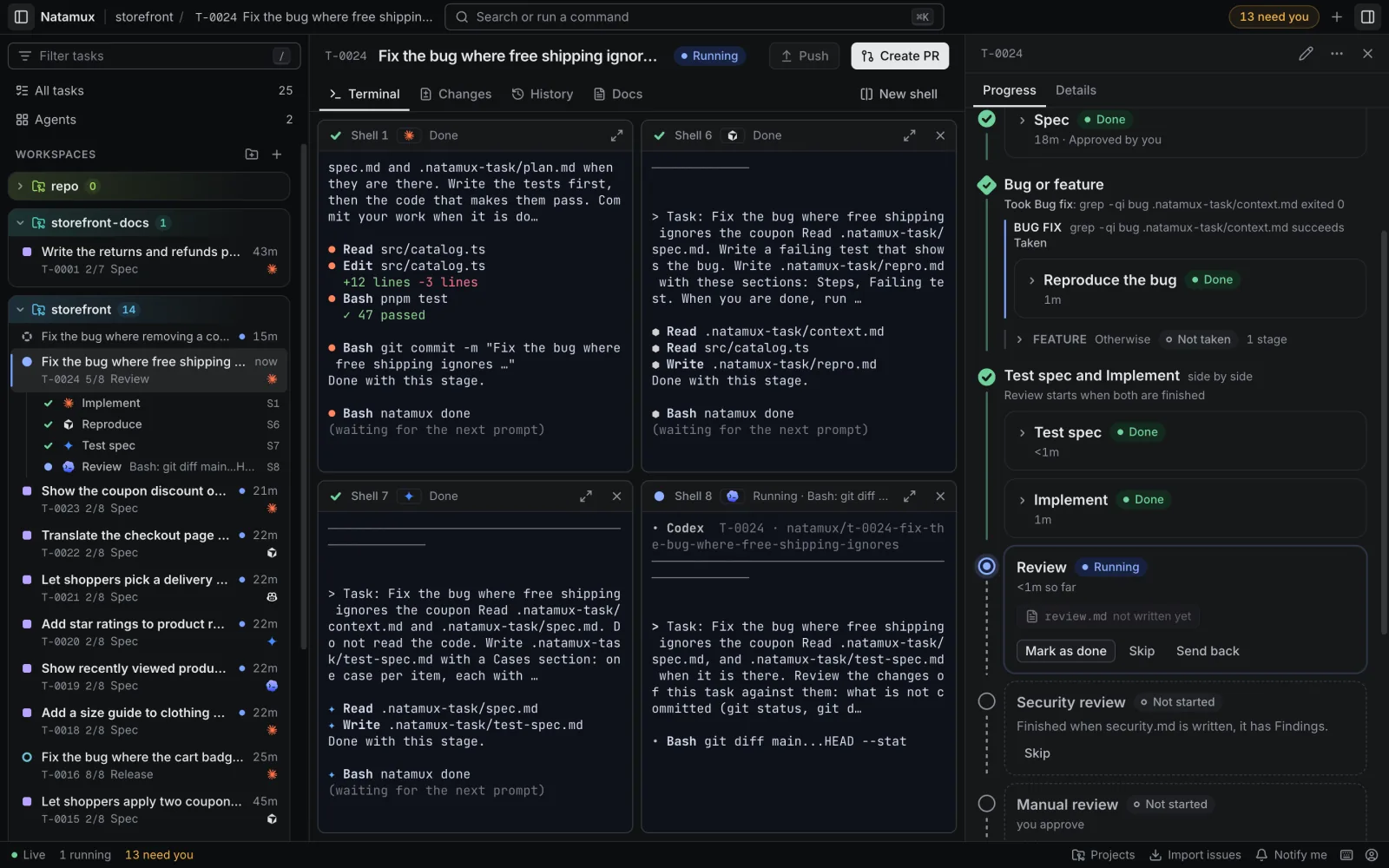
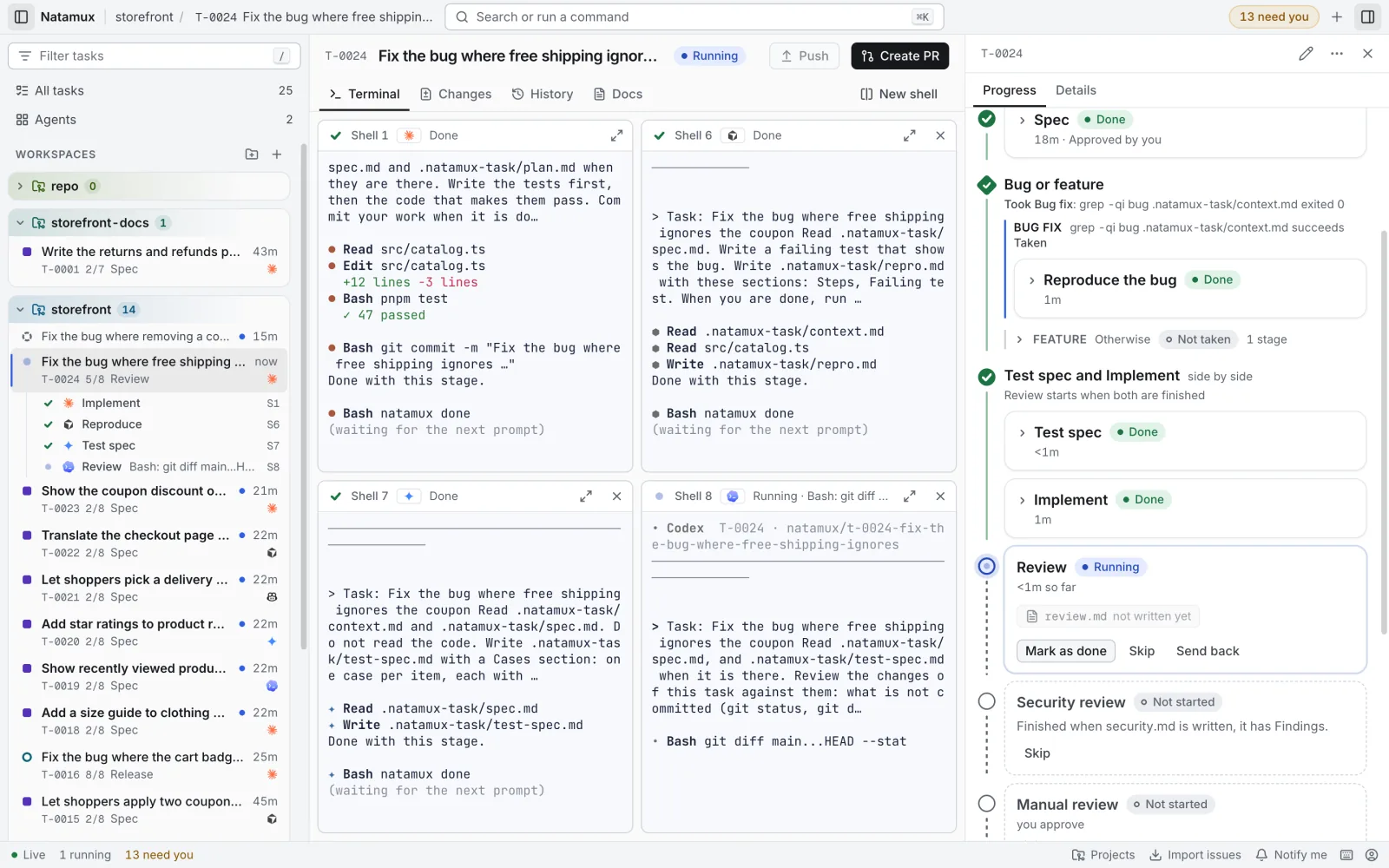
On the dashboard, the state of the task updates by itself, because Natamux’s hooks tell it when the agent works, asks or finishes. You can close the dashboard and the agent keeps running.
Answer when it needs you
Section titled “Answer when it needs you”When an agent asks a question or waits for a permission, the task moves to Needs input. Its row in the sidebar becomes a card with the agent’s question, and the title bar shows a count such as “1 needs you”.
- Click the task in the sidebar.
- Click Answer in terminal on the banner.
- Type your answer in the terminal.
The task goes back to running. See Dashboard.
Review the stage
Section titled “Review the stage”Each task moves through stages. The Progress tab of the details panel shows them and the evidence of each one, beside the terminal.
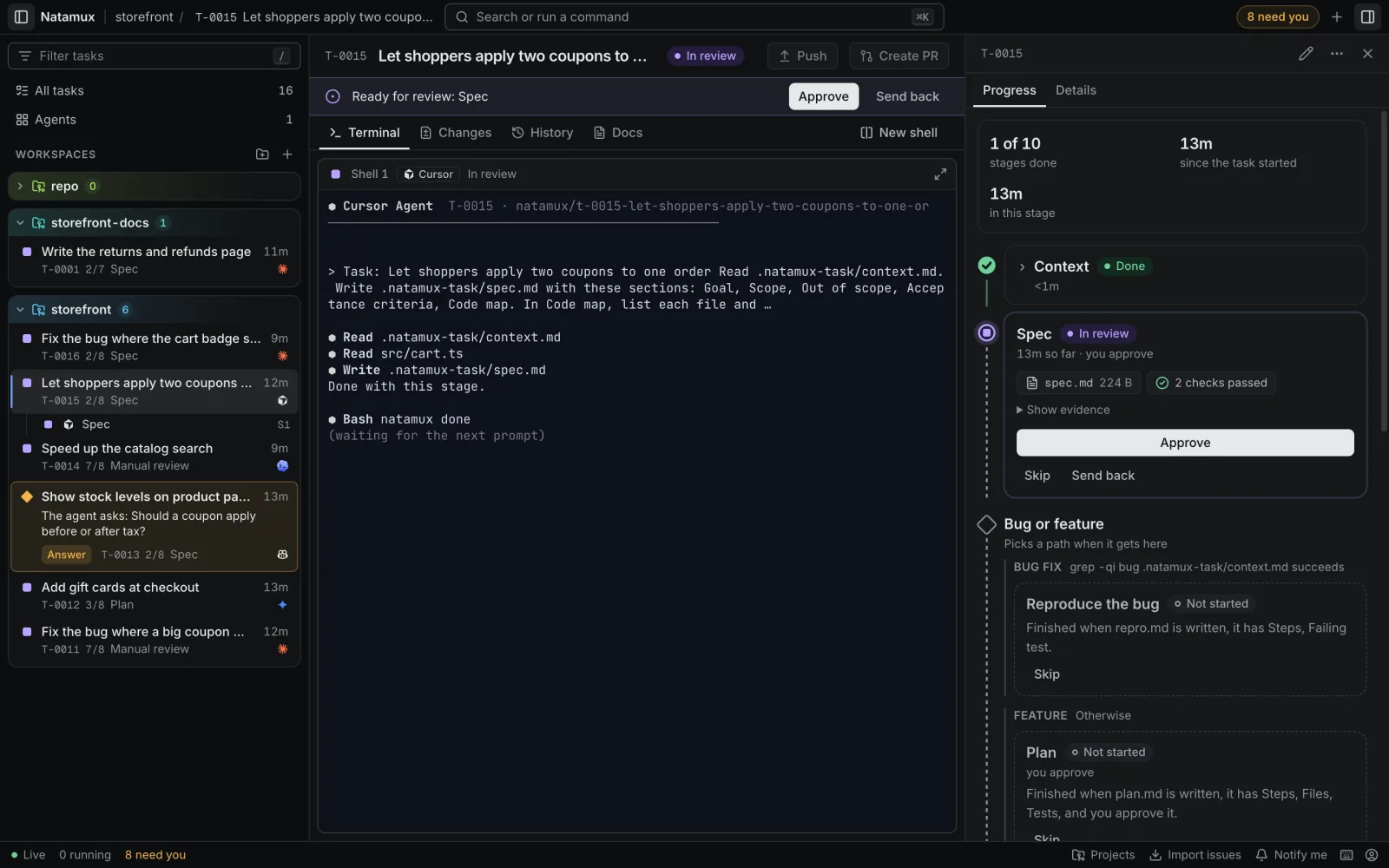
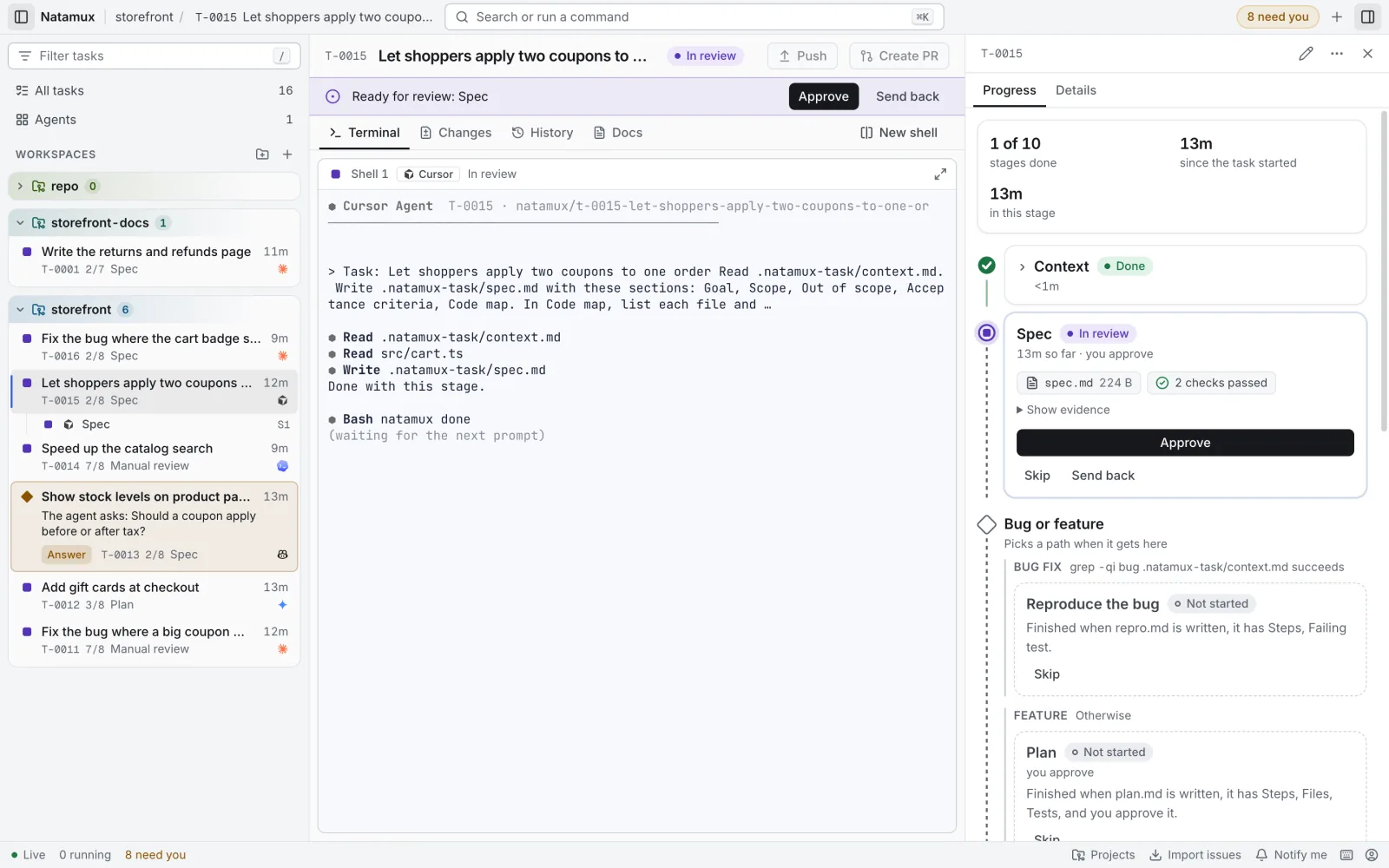
When a stage waits for you, the task is in review. Read what the agent produced, then:
- Approve moves on to the next stage.
- Send back returns the task to an earlier stage, with a note about what should change.
- Skip leaves the stage out.
With the default pipeline you approve three times: the spec, the plan and the test spec.
- After you approve the plan, two agents work at once: the task’s agent implements in Shell 1, and a second agent writes the test spec in Shell 2.
- When both are done, the tests run, then a review agent reads the changes in Shell 5.
- If the review finds problems, it sends the task back to Implement by itself, at most two times.
See The review loop and Stages.
Look at the changes
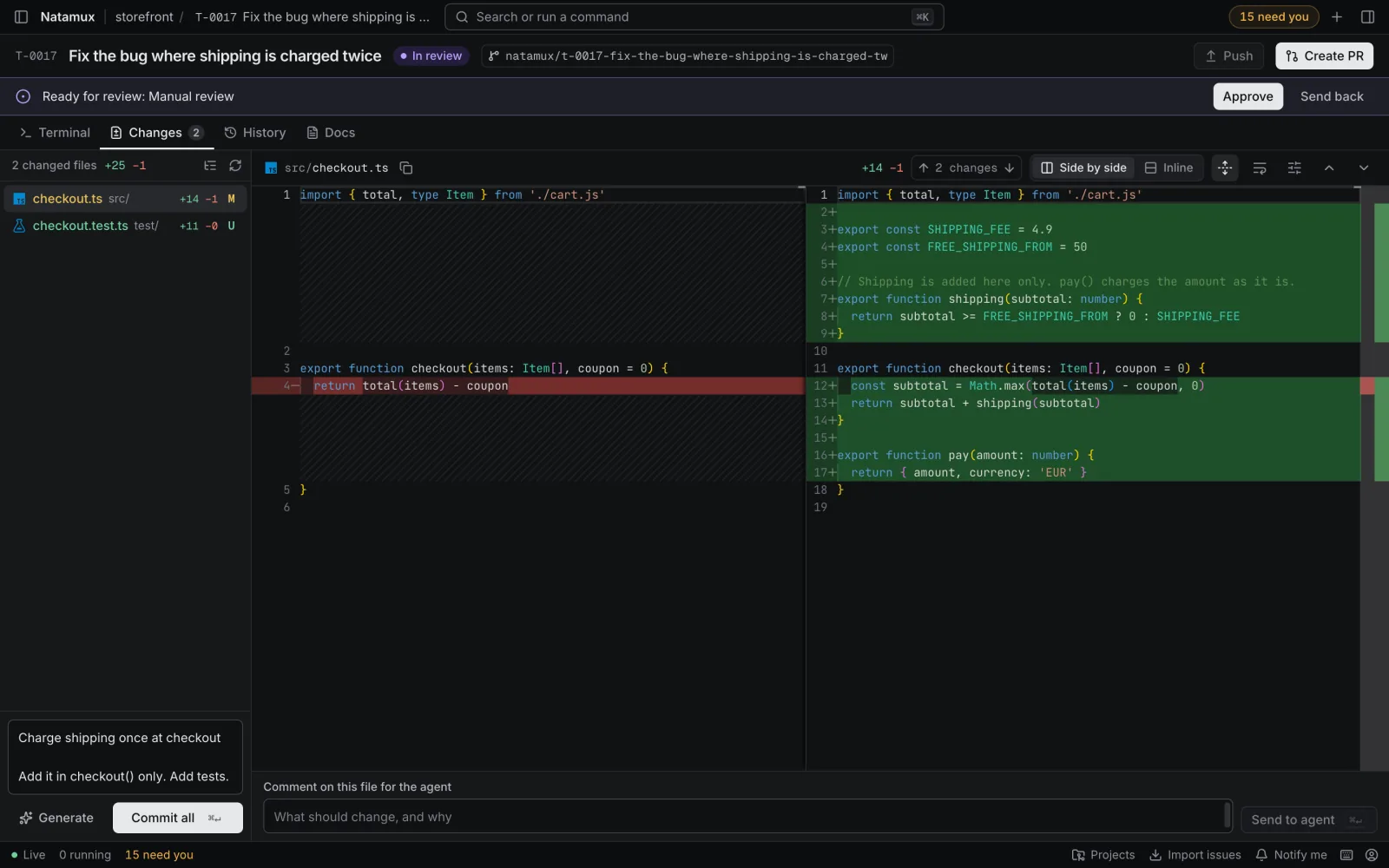
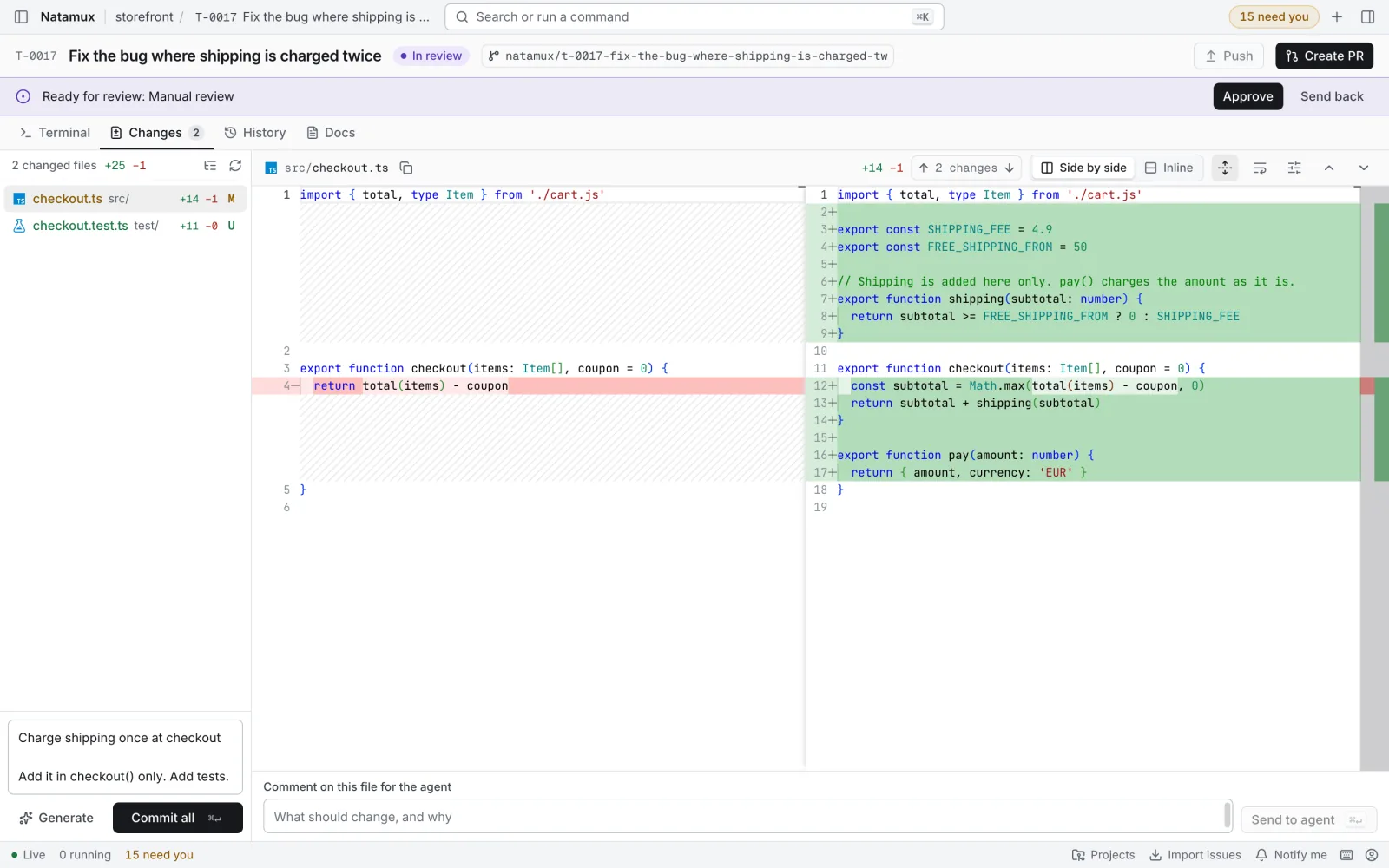
Section titled “Look at the changes”Open the Changes tab. It lists the changed files and shows a diff for each one, side by side or inline. The History tab shows the task’s branch as a graph.
Commit, push and open a pull request
Section titled “Commit, push and open a pull request”- In the Changes tab, write a commit message, or click Generate to let the agent draft one. Then click Commit all. It commits every change, new files included.
- Click Push in the task header. The button shows how many commits are ahead, for example Push ↑2.
- Click Create PR. It needs the
ghcommand, logged in. When the pull request exists, the button becomes Open pull request.
Natamux never pushes or merges unless you click the button or run the command.
Finish
Section titled “Finish”Merge the pull request on GitHub. While a dashboard is open, Natamux checks pull requests of open tasks once a minute (every 5 minutes once all their checks have finished), and when one is merged it moves a task in review to done.
To clean up, open the task and remove its workspace. Natamux asks first and refuses if the worktree has changes that are not committed.