
Project settings
Each project has its own settings: the stages every task goes through, where task context comes from, the issue tracker and how agents ask for permission. Natamux keeps them in .natamux.json at the root of the repository, so you can commit the file and share it with your team.
Open them from the sidebar: click the gear next to the project. Or right-click the project, or click … next to it, and choose Settings. The screen is called Project settings of <repo> and has three tabs: Stages (the default), Issues and JSON.
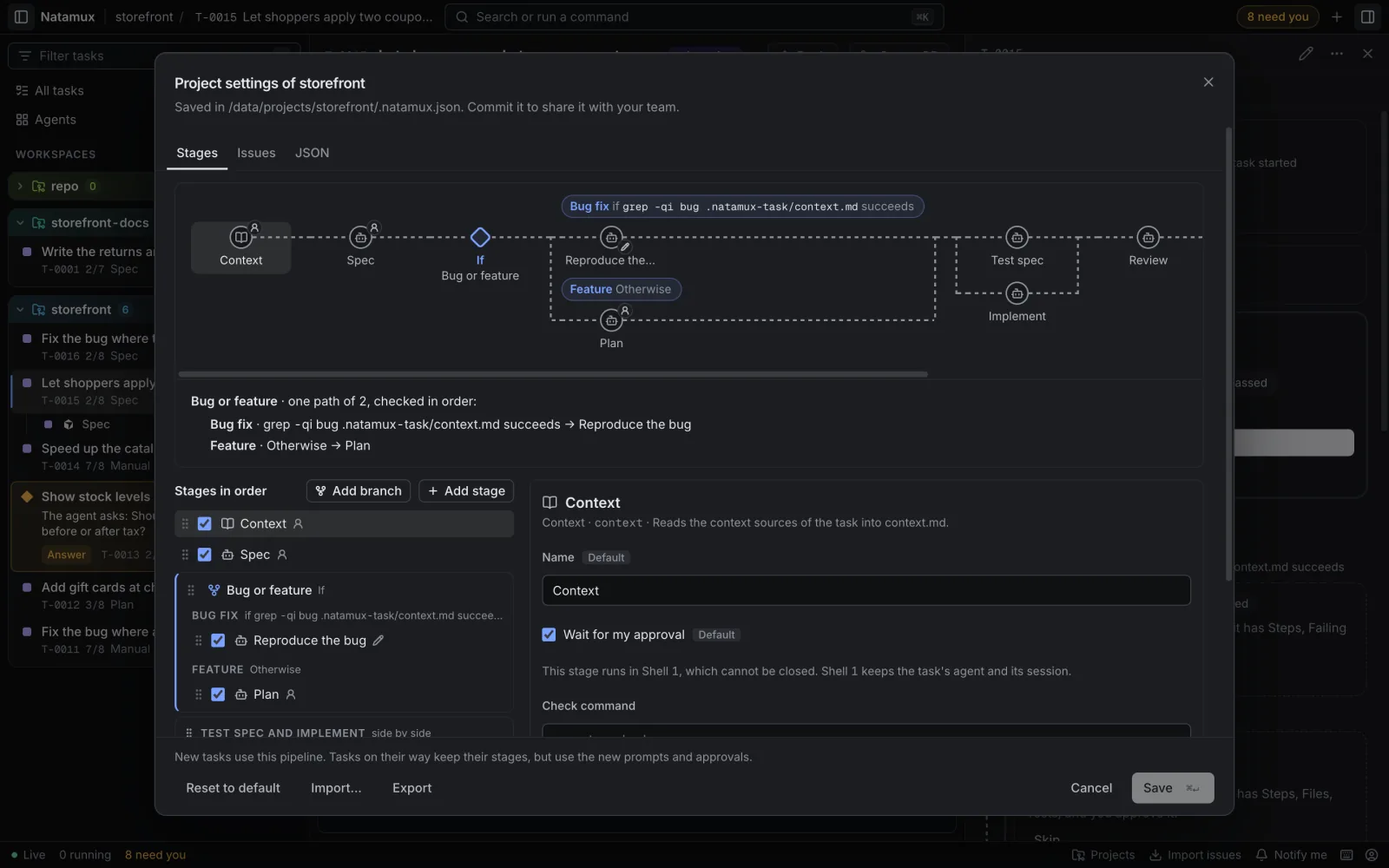
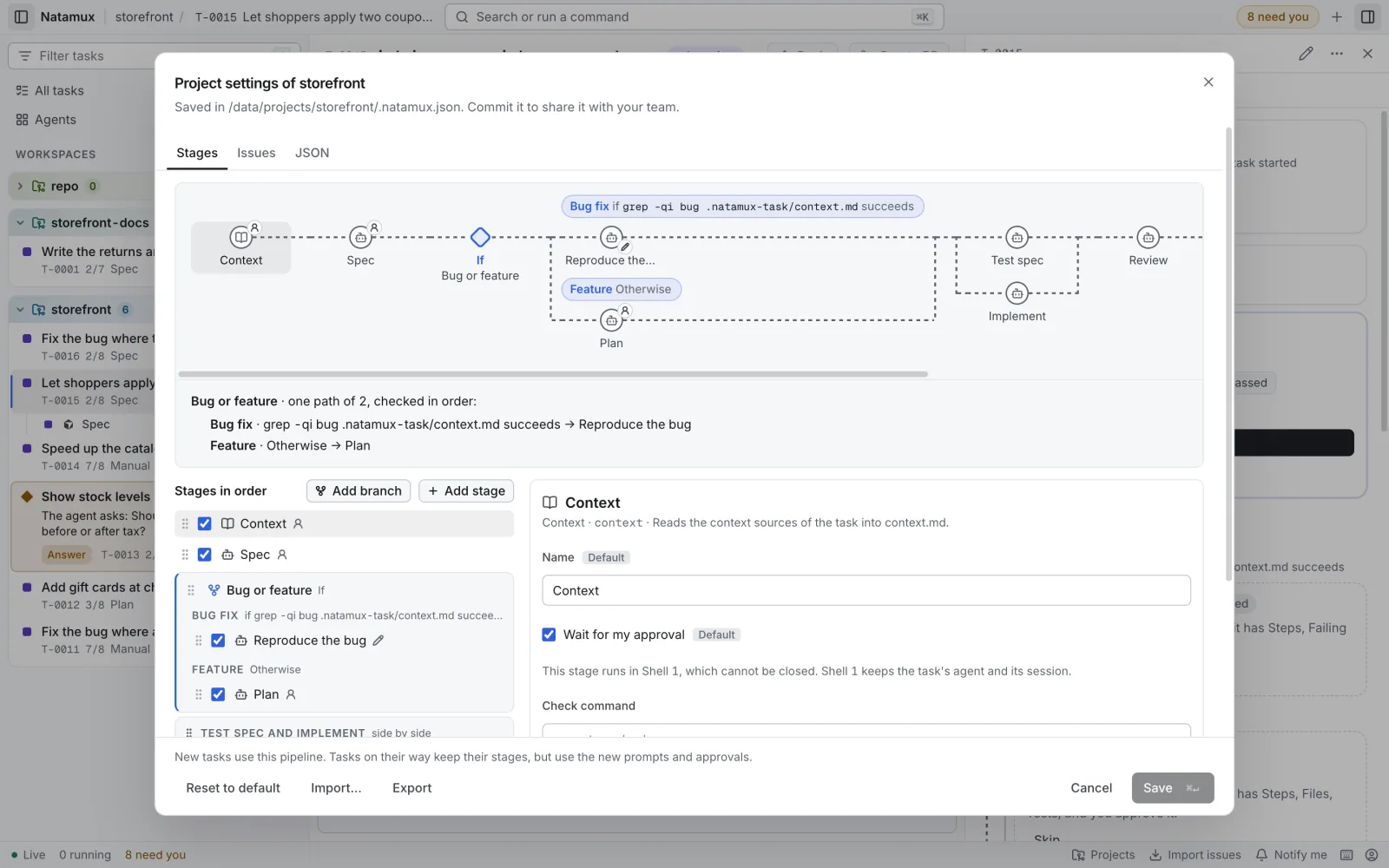
The Stages tab
Section titled “The Stages tab”- Pipeline preview. A flow chart on top shows the stages as you edit them, with side-by-side stages in one column. A person icon marks a stage that waits for your approval. A pencil marks a prompt of your own. Click a node to select its stage.
- Stages in order. One row per stage, with a checkbox that turns it on or off, and a drag handle. Drag a row, or focus it and press
Alt+ArrowUporAlt+ArrowDown. The row menu has Move up, Move down, Run alongside the stage above, Run on its own and Remove. A stage that is off stays in the file with its prompt and approval, but new tasks do not get it. - Add stage opens the catalog of 28 stages, grouped by phase: Understand, Design, Build, Check and Ship. Custom stage makes a stage of your own. The catalog lists every stage.
- Details. Click a stage to edit it.
| Field | Shown for | Meaning |
|---|---|---|
| Name | Every stage | The name in the dashboard. |
| Wait for my approval | Every stage | Shows Default or Changed. Use default goes back. A review or manual stage is always checked, with “This stage is a check by a person.” For release the label is Open the pull request when I click. |
| Tasks can run it as a workflow | Agent stages | Gives each task a Run with a workflow checkbox on this stage. On by default for Plan and Implement. See Run a stage as a workflow. |
| Tasks can check it on CI | Testing stages and agent stages without an output file | Gives each task a Check on CI checkbox on this stage. On by default for Implement and Automated tests. See Check a stage on CI. |
| End the agent and close its shell when the stage is done | Context, agent and testing stages outside Shell 1 | Off by default. When the stage is done, Natamux ends its agent or command and closes its shell. A stage in Shell 1 shows “This stage runs in Shell 1, which cannot be closed.” instead. See End a stage’s shell. |
| Agent | Stages that start their own agent: agent stages beside the stage in Shell 1, such as Test spec, stages in their own shell, such as Review, and agent or testing stages of your own | The agent this stage starts. Task’s agent keeps the task’s own. A stage with its own agent or arguments runs in a shell of its own, from Shell 6, and Shell 1 keeps the task’s agent. See Choose a model. |
| Arguments | The same stages, and any stage whose file sets args |
Words added to that agent’s command line, such as --model sonnet. On a stage that does not use them, the field says so; clear it to remove it. |
| Prompt | Agent and testing stages | The chips {title}, {description}, {dir} and {ref} insert placeholders. Insert skill opens a picker with the groups Project, Plugins and Only on this machine, and inserts {skill:<name>}. A prompt of your own gets no commit rule: say whether the agent commits. |
| Command | Testing stages, and any stage whose file sets command |
The command to run. Lint and types and End-to-end tests need one. On another kind of stage it does not run; clear it to remove it. |
| Check command | Every stage | A shell command the daemon runs in the task’s folder after the stage reports done, such as pnpm typecheck. Exit code 0 passes. Empty: none. |
| Output file | Agent stages | The Markdown file the stage writes. Fixed for a catalog stage. |
| Required sections | Agent stages with an output file | Headings the file must have. |
| Finished when | Every stage | The sentence the progress view shows before the stage starts. |
- Problems. Each problem shows next to its stage, and Save is off until they are fixed. The rules are in Rules for the pipeline.
- Footer. Reset to default puts the default pipeline in the editor. Import… and Export load and save a file; see Import and export. Cancel closes the screen. Save (
Mod+Enter) writes the file. A line above them, except on the Issues tab, says: “New tasks use this pipeline. Tasks on their way keep their stages, but use the new prompts and approvals.” - Phone. Below 640 px the list and the details are one column. A stage opens in place of the list, with Back.
Save changes only stages. Other fields and keys it does not know stay in the file. When the stages equal the default pipeline, Save leaves stages out of the file, so the project follows later changes of the default.
The Issues tab
Section titled “The Issues tab”The Issues tab sets when Natamux opens a GitHub issue for a task (tracker.createIssue). By default it opens none: Only when you click Create issue in the task’s Progress view. The other choices open the issue when you approve the Spec stage, or just before the pull request opens. Never also hides the Create issue button.
Under the choices, the tab says what the issue is made of. With tracker.type set to none, the choices are turned off. See Open an issue for a task.
The JSON tab
Section titled “The JSON tab”The JSON tab edits the whole file as text. Edits move between the tabs. JSON that is not valid keeps you on this tab with the error shown, until you fix it. Use it for fields the Stages tab does not show:
requireCommit,requireCleanandcheckon a stage;ownShellon a stage: it has no checkbox on the Stages tab;context.sources, such as a skill or MCP source with a name of its own;tracker.typeandtracker.linkInPr, the rest of the issue tracker;agents.permissionMode,autoorask.
Every field is in the configuration reference.
Import and export
Section titled “Import and export”Use these to copy settings from one project to another, or to keep a copy.
- Export downloads what the screen shows, edits included, as
<project>.natamux.json. It is turned off while the JSON tab holds JSON that is not valid. - Import… opens a
.jsonfile (up to 1 MiB) in the screen, in place of the current settings. When the file has a Check command, Command or Arguments on any stage, it asks first and lists each one, with its stage, in full: they run on this computer. With edits not saved, it asks too, in the same question. It does not save: check the settings, then click Save. A file with a problem opens on the JSON tab with the error.
To use an exported file in another project, import it there, or copy it into the repository as .natamux.json.
When the file changes
Section titled “When the file changes”- If the file changed on disk since you opened the screen (another editor, a pull), Natamux says “The file changed on disk since you opened it.” Reload reads the file again and drops your edits. Overwrite saves your version over it.
- Closing the screen with edits asks “Discard your changes?”.
- If the file is not valid, the screen shows the error and the default settings, and Save asks before it replaces the file.
- The daemon reads the file again when it changes, so an edit in your own editor counts at once.
Common changes
Section titled “Common changes”Choose the review agent
Section titled “Choose the review agent”- Click Review in the stage list.
- In Agent, pick the agent, for example Codex.
- Optional: in Arguments, add words such as
--model sonnet. - Click Save.
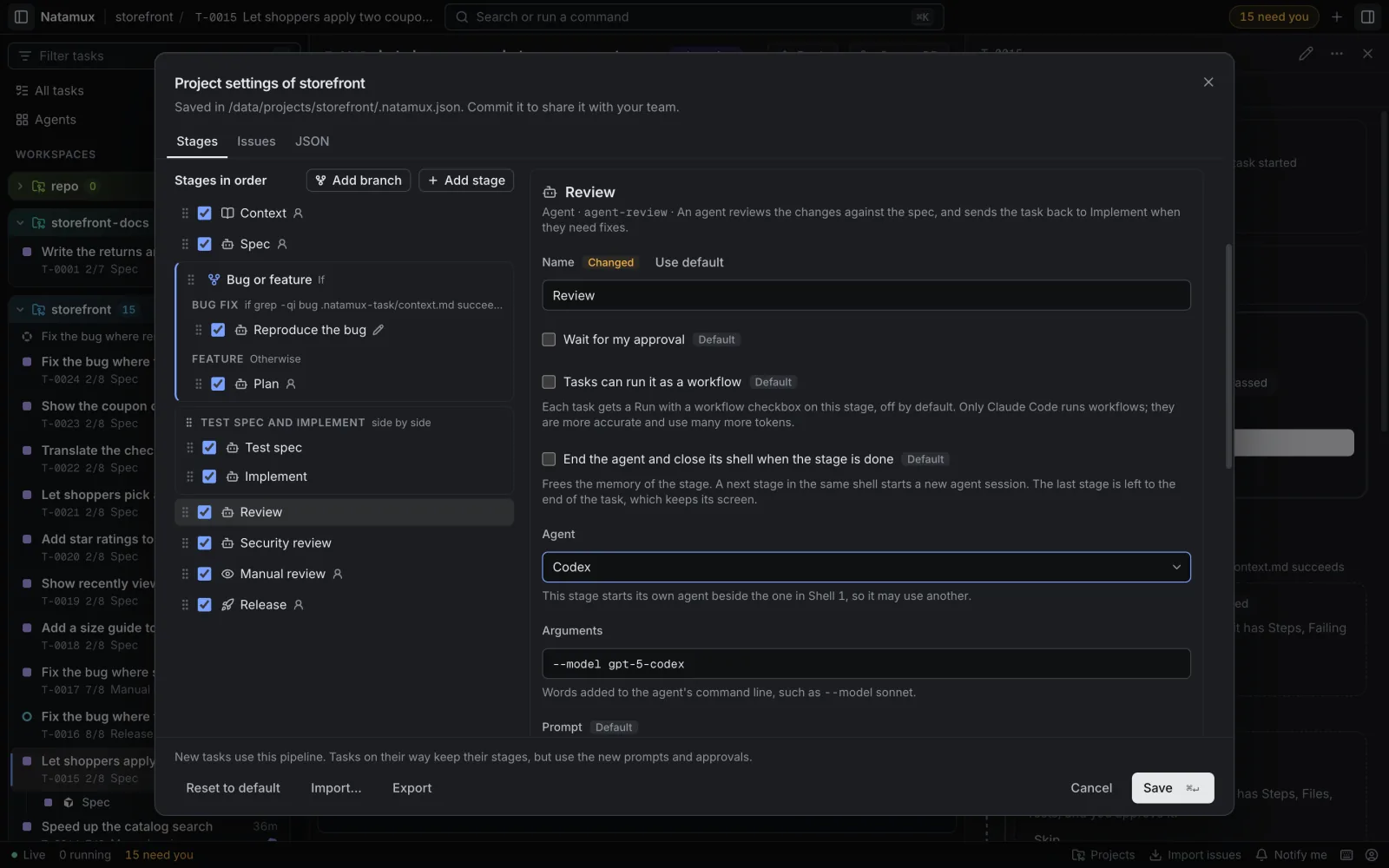
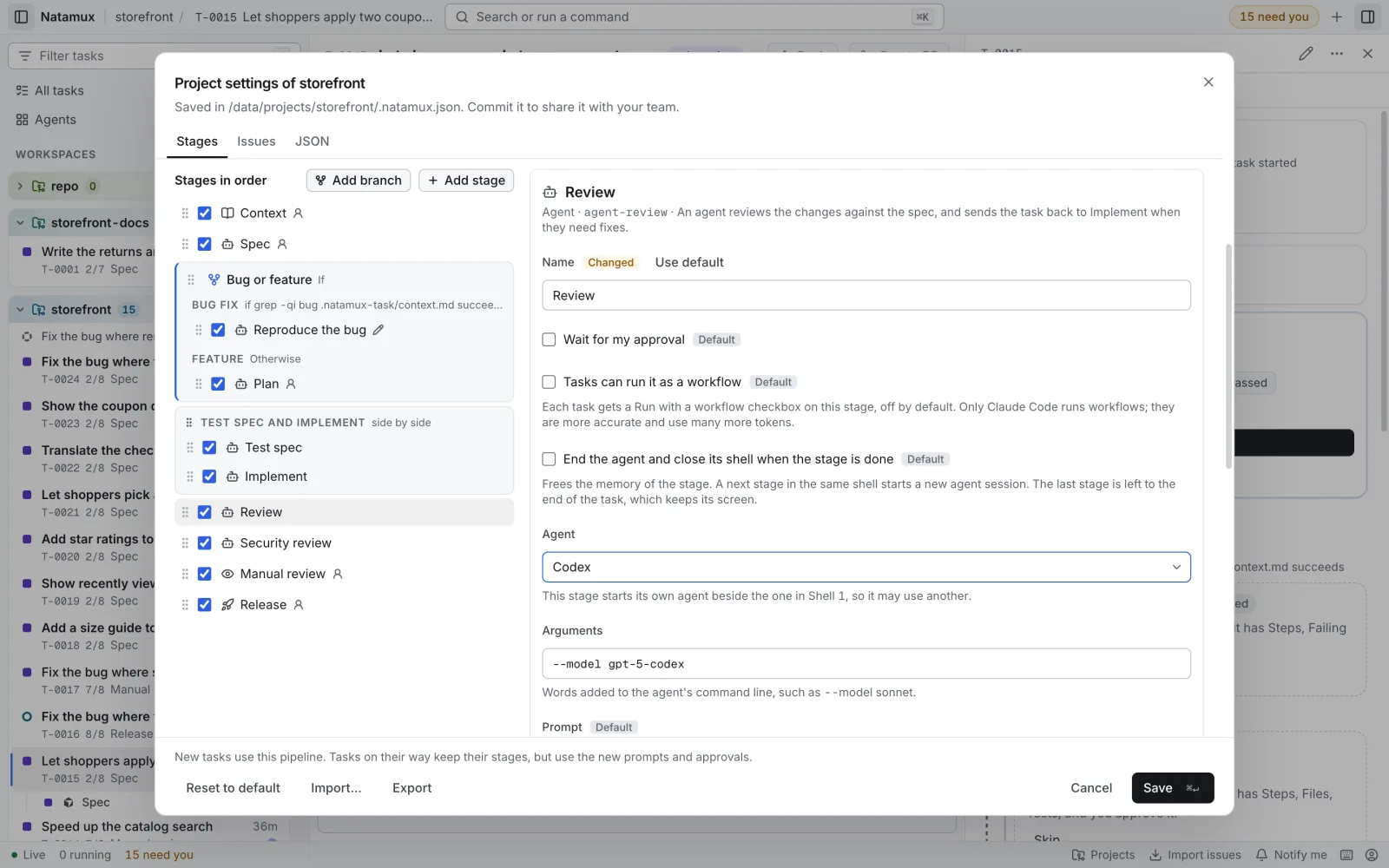
Review runs in its own shell, Shell 5, so it can use another agent than the task’s without touching the session in Shell 1. Test spec works the same way, in Shell 2. See The review loop.
Split the pipeline by a condition
Section titled “Split the pipeline by a condition”- Click Add branch and give it a Branch name.
- Give each path a Path name and a condition, such as File has text (a section of
plan.md) or Command succeeds. - Click Save.
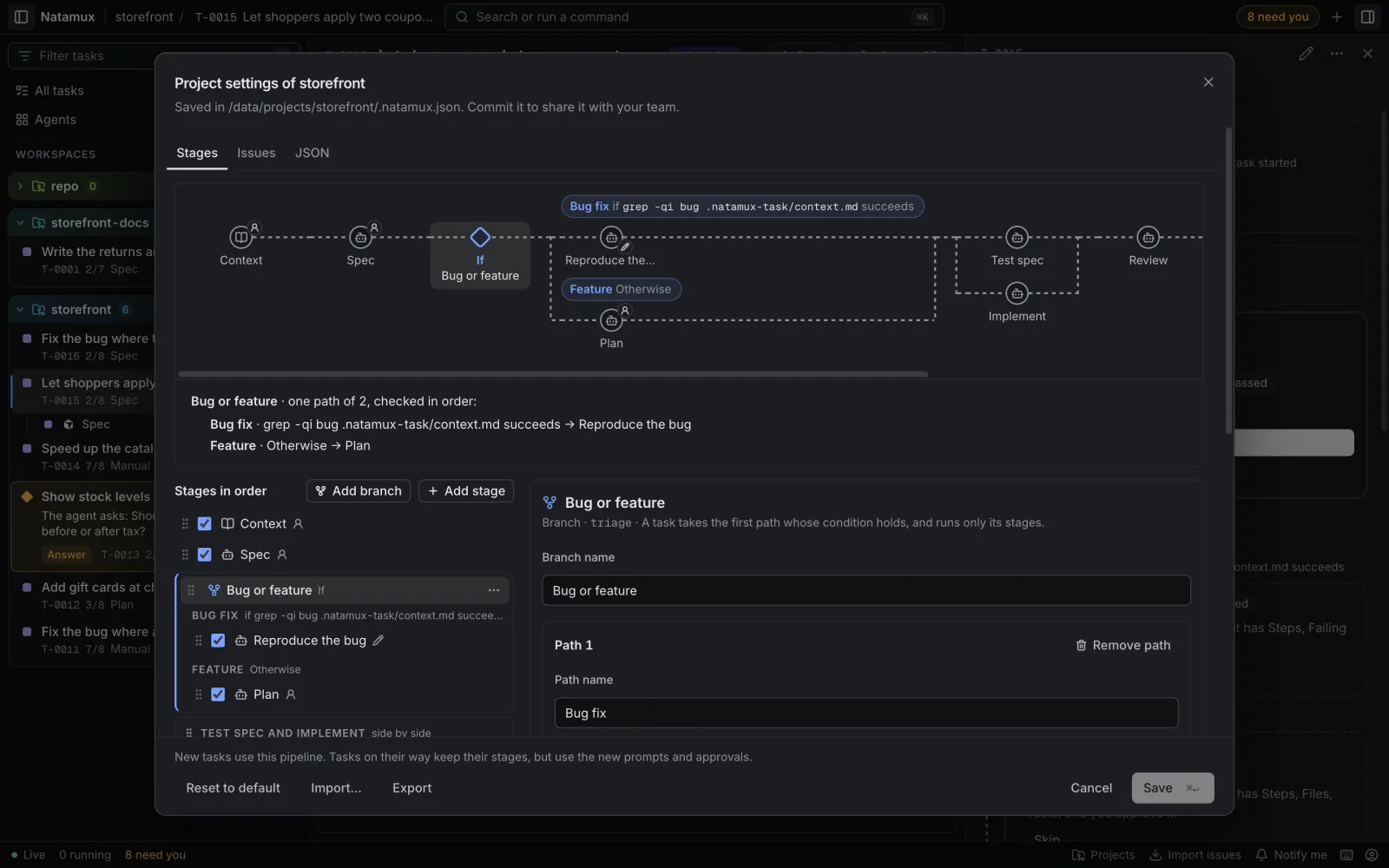
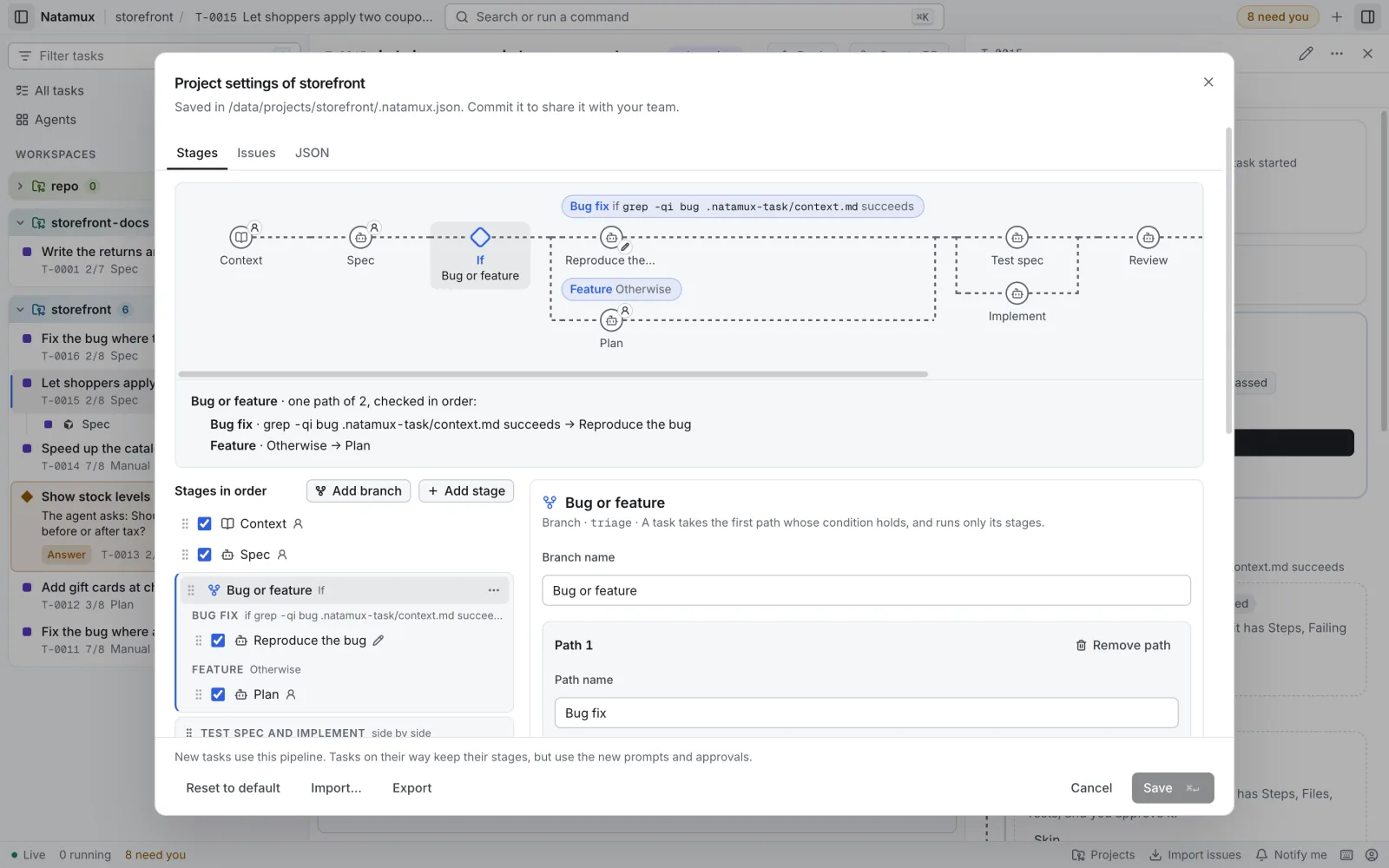
See Paths with a condition and Build a workflow.
Give a stage another agent
Section titled “Give a stage another agent”Click the stage and set Agent and Arguments. The stage then runs in its own shell. See Mix agents in one task.
Have a person read the diff
Section titled “Have a person read the diff”Click Add stage, pick Manual review in the Check phase, and drag it after Review. The task then waits for your Approve before Release. To make the agent review wait for you as well, tick Wait for my approval on Review.
Skip the planning
Section titled “Skip the planning”Turn off Plan with its checkbox. After you approve the spec, Test spec and Implement start at once.
Add a check stage
Section titled “Add a check stage”Pick Security review, Performance check or Accessibility check from the catalog. Each one writes a report with a Findings section and waits for your approval. Like Review, it runs in Shell 5, the one shell that all such stages share. When an agent still runs there, for example the Review agent, the stage gets its prompt in that session. With its own Agent or Arguments, it runs in a shell of its own instead, from Shell 6.
Run your own test command
Section titled “Run your own test command”Click Automated tests and enter a Command, such as pnpm test. A shell runs it instead of an agent. Exit code 0 passes the stage.
Let agents ask before they act
Section titled “Let agents ask before they act”On the JSON tab, add:
{ "agents": { "permissionMode": "ask" } }Each agent then follows its own permission settings. See agents.
What a change does to tasks
Section titled “What a change does to tasks”- New tasks use the new pipeline.
- A task on its way keeps its list of stages. It uses the new names, prompts, approvals and checks of those stages.
- A catalog stage that is gone from the file keeps its catalog settings for a task on its way.
Related
Section titled “Related”- Stages: kinds, gates and checks
- The review loop: the default pipeline at work
- Configuration: every field of
.natamux.json