
Changes and history
Each workspace has a Changes tab and a History tab. Use them to review the agent’s work and ship it, without leaving the dashboard.
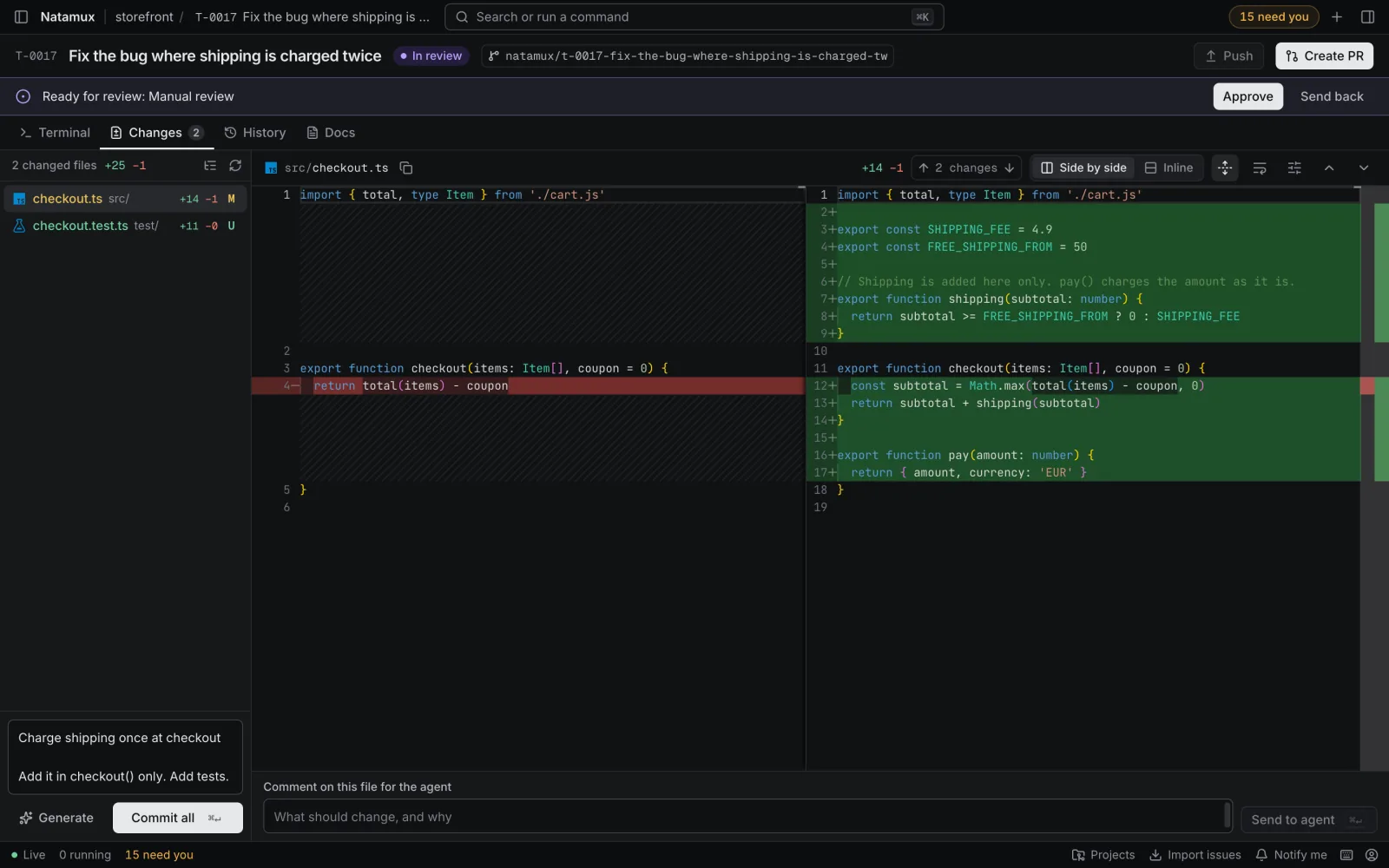
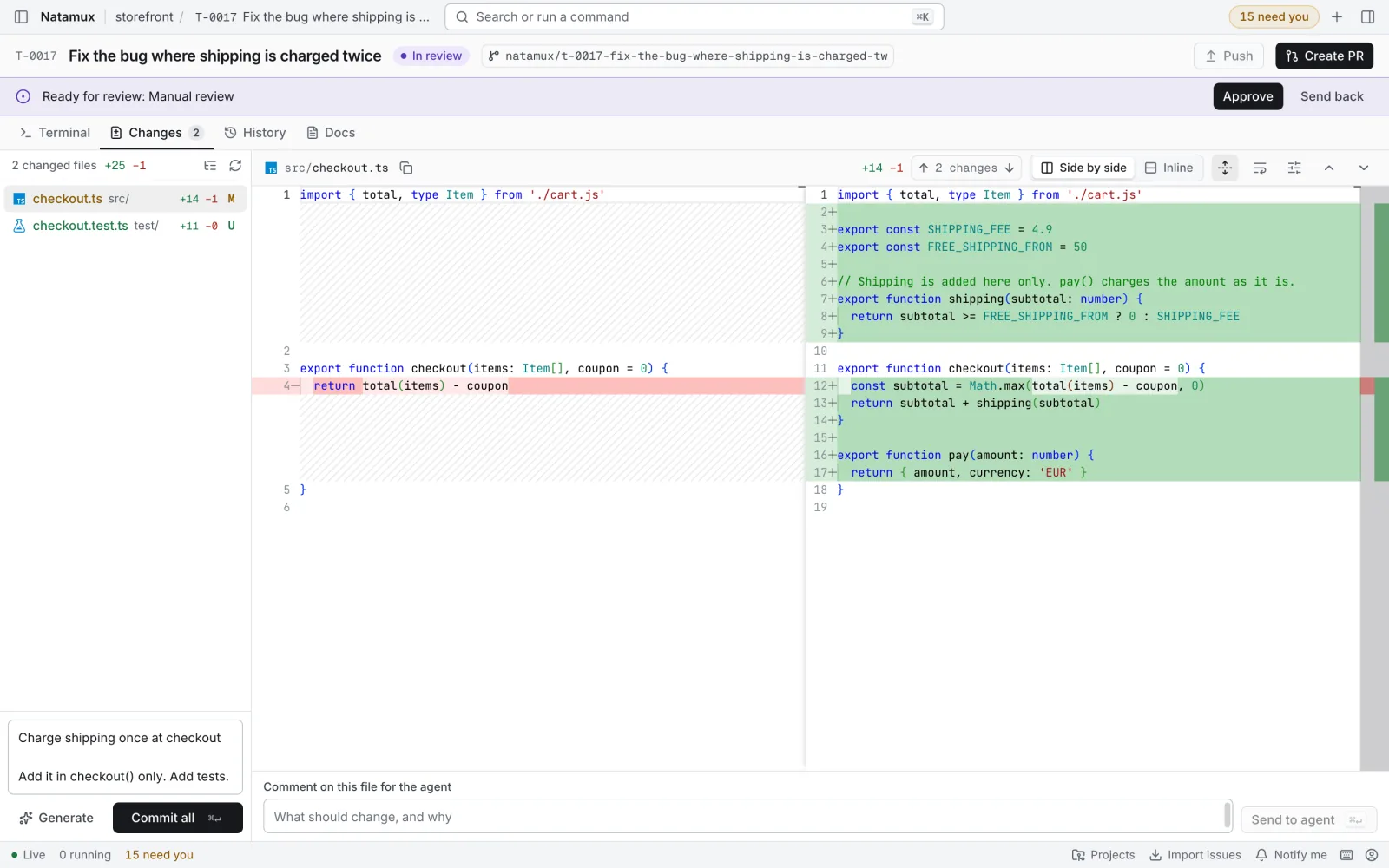
Open them from a workspace, or press 2 for Changes and 3 for History. The Docs tab (4) shows the stage files; see Stages.
Changes tab
Section titled “Changes tab”The tab lists every file in the workspace that differs from the last commit of the branch. This includes new files that git does not track yet. The tab label shows how many there are. The list refreshes soon after an agent or a terminal of the task changes files, and once a minute; changes made outside Natamux can take up to a minute to show. Click Refresh, or press Shift+R, to read them at once.
When no file differs, the tab says No changes and The workspace matches its last commit.
Changed files
Section titled “Changed files”The header of the file list shows the number of changed files and the total lines added and removed. Each file shows a status letter.
| Letter | Meaning |
|---|---|
| M | Modified |
| A | Added |
| U | New file (not tracked yet) |
| D | Deleted |
| R | Renamed |
| C | Conflict |
Each file also has an icon for its type and, when known, its lines added (+) and removed (−). A deleted file is struck through. A renamed file shows where it came from.
Click View as tree to group files by folder. Click it again to go back to the flat list. In the tree, Collapse all folders and Expand all folders fold every folder. A folded folder shows its file count and its totals. Natamux remembers your choice in this browser.
Use the arrow keys to move in the list, Left and Right to fold folders, and Enter to open a file. Press [ and ], or click Previous file and Next file, to step through the files in the order of the list. Drag the divider to resize the list.
In a narrow window (under 720 px) the list becomes a Changed file picker above the diff.
Read a diff
Section titled “Read a diff”Click a file to see its diff. The toolbar above it has these controls.
| Control | What it does |
|---|---|
| Side by side / Inline | Show the old and new text in two columns, or in one. Images say Stacked instead of Inline. |
| Previous change / Next change | Jump between the changes in this file. The counter shows where you are. Keys: Shift+Alt+F5 and Alt+F5. |
| Collapse unchanged lines | Fold long runs of lines that did not change. On by default. |
| Wrap long lines | Wrap lines instead of scrolling sideways. On by default for prose (md, markdown, txt, rst and files with no extension), off for code. The two have separate settings. |
| Diff options > Ignore leading and trailing whitespace | Hide changes that only touch whitespace. On by default. |
| Diff options > Show moved code | Mark blocks of code that moved. Off by default. |
| Copy path | Copy the file path. |
Side by side needs about 720 px for the diff itself. In a narrower window the diff is inline, and Side by side says Needs a wider window. Your choice comes back when the window is wide again.
If a file only changed in whitespace or line endings, a bar says so. Click Show whitespace to see those changes.
New and deleted files show their whole text with a New file or Deleted badge and the line count. Natamux shows these notices instead of a diff:
- This file is binary. It changed, but it is not shown.
- This file is larger than 1 MB, so it is not shown.
- Empty file.
- Renamed without changes.
- The text did not change. Only the file mode may differ.
Your toolbar choices are kept in this browser. In a diff, F7 and Shift+F7 open the accessible diff view.
Image diffs
Section titled “Image diffs”A changed PNG, JPEG, GIF, WebP or SVG file shows as images, not text. You see Before (last commit) and After (working tree), side by side or stacked. A new image has only the after side. A deleted one has only the before side.
An SVG file shows as text first. Click Show image preview to see it drawn.
Comment for the agent
Section titled “Comment for the agent”Under every diff there is a box to comment on the file. It says Comment on this file for the agent. When the cursor is on a line in the diff it says Comment on line N for the agent.
- Press
Mod+Shift+A, or click the box. - Write what should change and why.
- Click Send to agent, or press
Mod+Enter.
Natamux pastes this text into Shell 1 as the agent’s next prompt:
Review comment on src/app.ts, line 12:Handle the empty list here.The box then says Sent to the agent. This needs an agent that runs in Shell 1. Without one you get an error and the comment is not sent. See Terminal.
Ask about selected lines
Section titled “Ask about selected lines”- Select lines in the diff. An Ask agent button shows next to them.
- Click Ask agent, press
Mod+Shift+A, or pick Ask agent about the selection in the right-click menu. The box shows the lines, for example Lines 12–14, and the cursor moves into it. - Write your question and click Send to agent.
The agent gets the lines with the comment:
Review comment on src/app.ts, lines 12-14:```const items = load()if (items.length === 0) { return```Why return here, and not show a message?- The whole lines count, even when only part of them is selected.
- Lines from the left side of a side-by-side diff are marked (before the change). In the inline view, removed lines cannot be selected.
- Over 10,000 characters, only the line numbers are sent, not the code.
- Click × (Remove the selected lines) to comment on the file again. Choosing another file also drops the lines.
Commit
Section titled “Commit”The commit box is under the file list.
- Write a Commit message, or click Generate (
Mod+Shift+G) to get a draft. - Click Commit all, or press
Mod+Enter.
Commit all stages every change in the workspace, new files too, and commits them. You cannot pick single files. A toast says Committed N files. and has a Push action. The button is off until you write a message.
Generate asks the task’s agent to write a message from the changes. It runs the agent once in the background, not in Shell 1, and puts the answer in the box. Read and change it before you commit; nothing is committed for you.
- The agent is the one the task runs. A task without one uses Claude Code.
- While the agent writes, Commit all is off with the reason Drafting the message…. Text you type in that time stays, and the draft is dropped.
- Commit… in the header drafts a message too, when the box is empty.
- When the agent is missing, fails, or takes more than 60 seconds, the box gets a simple message from the task title and the file names, and a toast says why.
Push and open a pull request
Section titled “Push and open a pull request”The header of the workspace has two buttons.
- Push pushes the task branch to
originand sets it as the upstream branch. The label shows how many commits are ahead of the base, such asPush ↑2. A toast says Pushed<branch>to origin. and, while the task has no pull request, has a Create PR action. - Create PR pushes the branch first, then opens a pull request on GitHub with the GitHub CLI. A toast says Pull request opened. and has an Open action.
Both buttons are off, with a reason in the tooltip, when the task has no branch or has 0 commits ahead of the base. When files are not committed yet, the reason is Commit your N changed files first, and Commit… takes the place of Push: it opens the Changes tab with the cursor in the commit message, and drafts a message when the box is empty. Create PR is drawn as the main button only when it can be used.
The pull request gets the task title as its title and the task notes as its body. When the task has a linked GitHub issue, the body ends with Closes #N. See GitHub.
After a pull request exists, Create PR becomes Open pull request (Open PR in a narrow window). It opens the pull request in a new tab.
A done or cancelled task keeps only Open pull request in its header. The banner under it offers the next step instead, see When a task is finished.
The pull request needs the GitHub CLI (gh) logged in on the machine that runs the daemon.
Pull request status
Section titled “Pull request status”The Pull request section in the details panel shows the pull request link and a summary such as open, checks pass. The states are open, draft, merged and closed. The checks are checks pass, checks fail and checks running. A pull request with no checks shows only its state.
While a dashboard is open, Natamux asks GitHub about open pull requests once a minute, or every 5 minutes once all checks have finished. Click Check now to ask at once. When the pull request is merged and the task is at review or later, the task moves to Done.
History tab
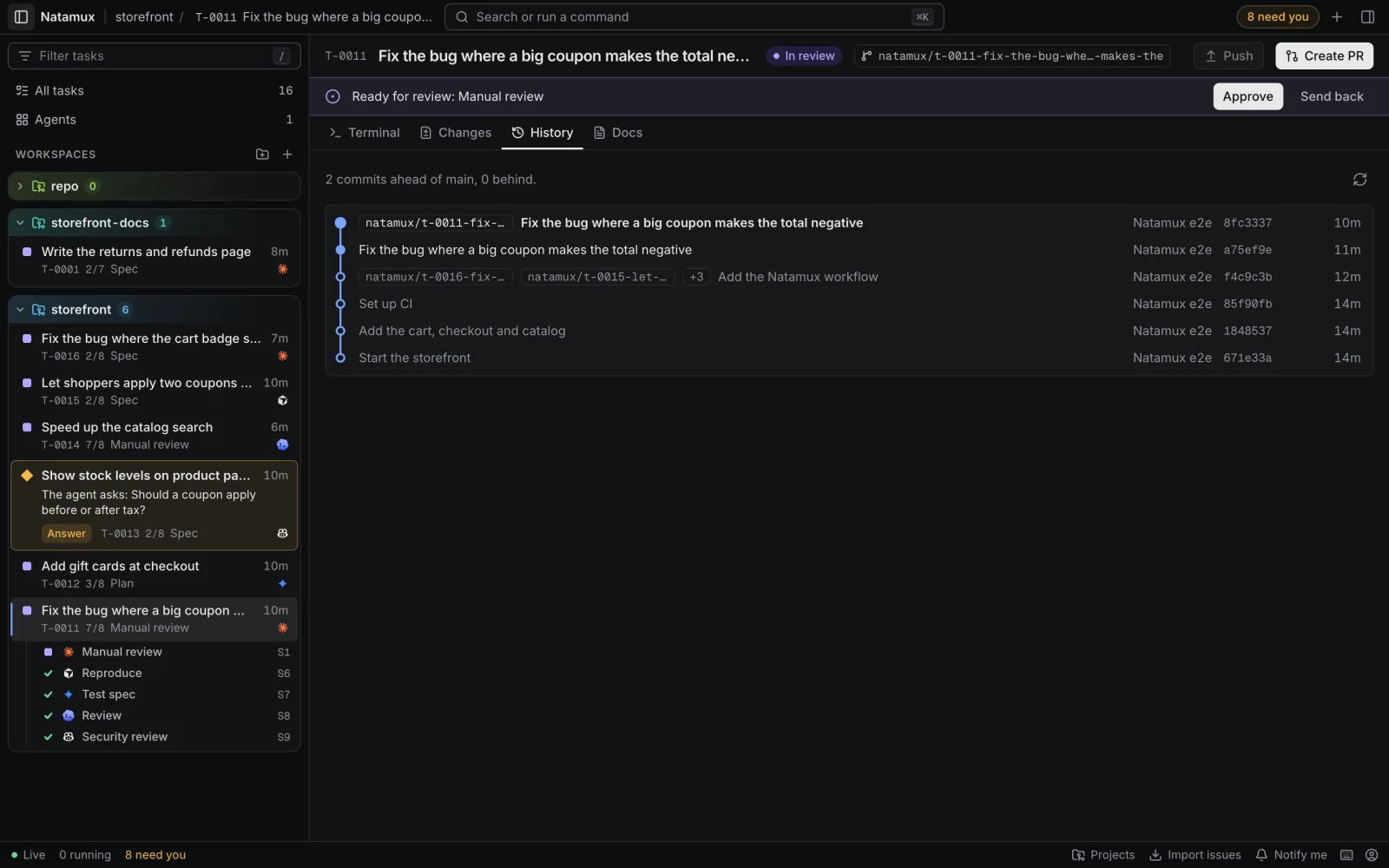
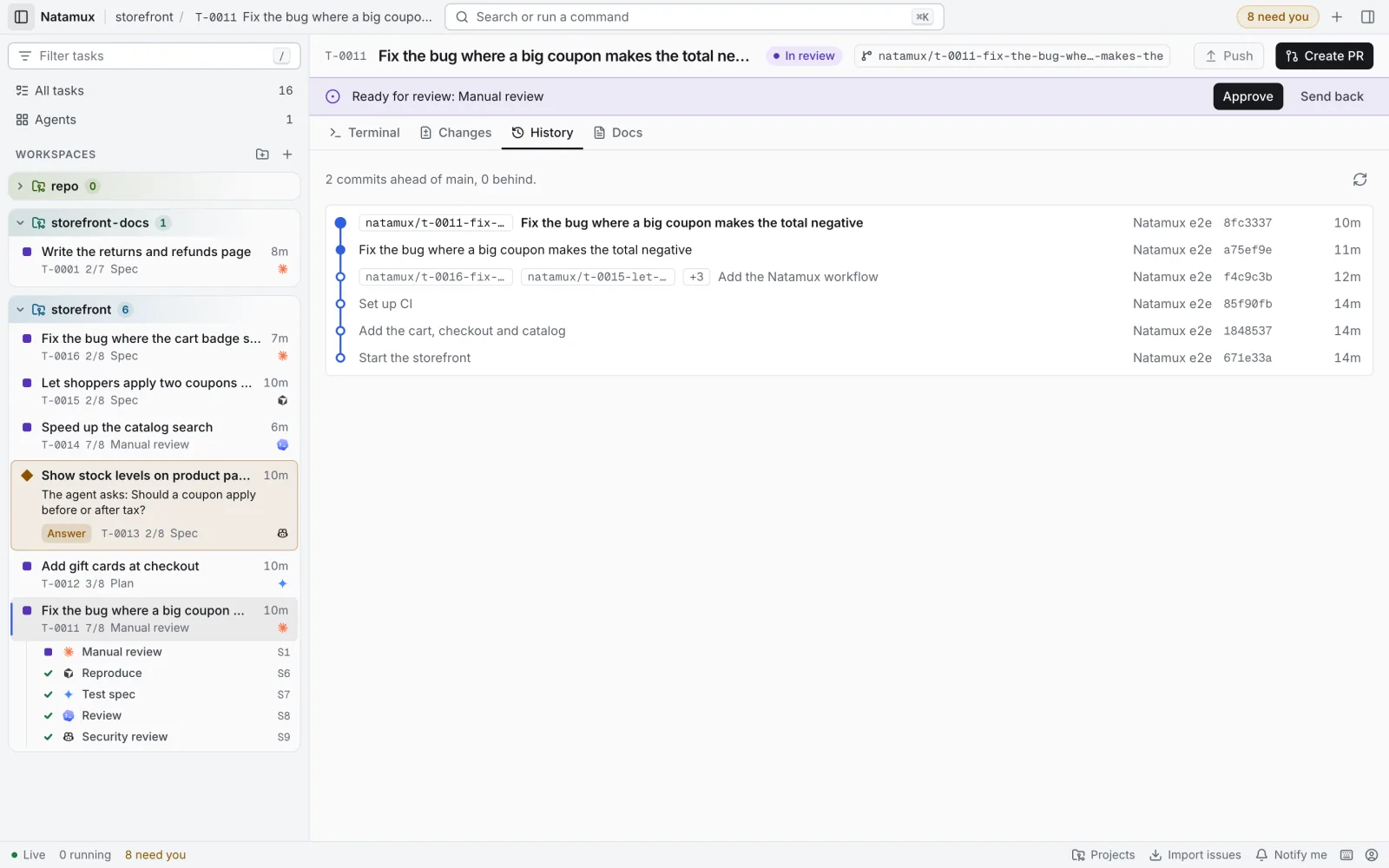
Section titled “History tab”The History tab draws the git graph of the task branch and of the branch of the main checkout, newest commit first.
- The first line says how far the task branch is from the base:
2 commits ahead of main, 0 behind.When files are not committed, it adds N files not committed., which opens the Changes tab. - The base is the branch that the main checkout of the repository is on. When that checkout is not on a branch, or is on the task’s own branch, the line says No base branch to compare with.
- Commits that are on the task branch and not on the base are drawn as filled dots. Commits of the base are muted.
- The current commit (HEAD) is in bold.
- Each row shows branch and tag names, the commit message, the author, the short hash and the age. Hover the age for the exact date.
- The graph shows the newest 200 commits. When there are more, it says Only the newest 200 commits are shown.
Click Refresh, or press Shift+R, to read the history again at once. The graph also refreshes soon after an agent, a terminal or Natamux commits, and once a minute; commits made outside Natamux can take up to a minute to show.