
Dashboard
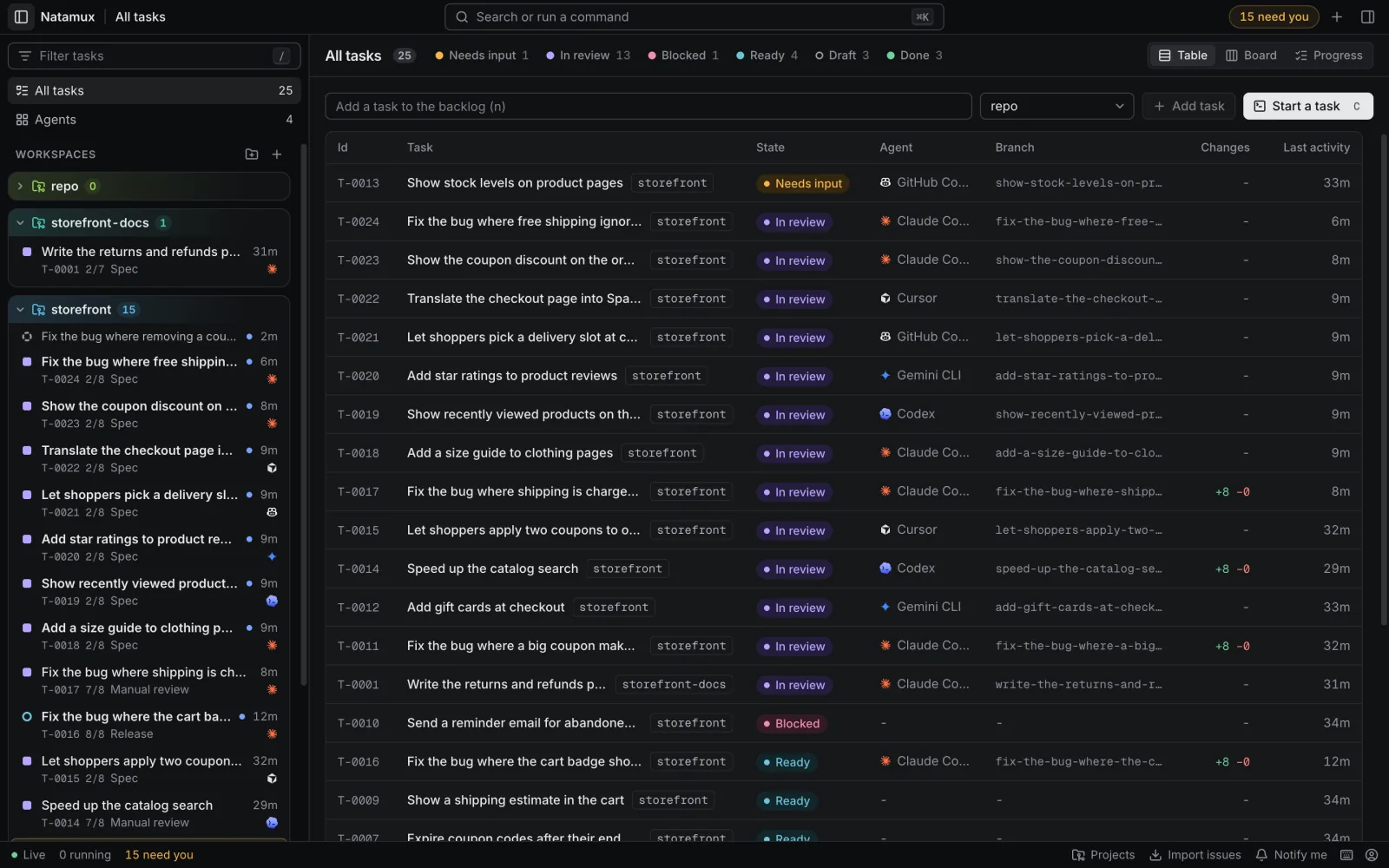
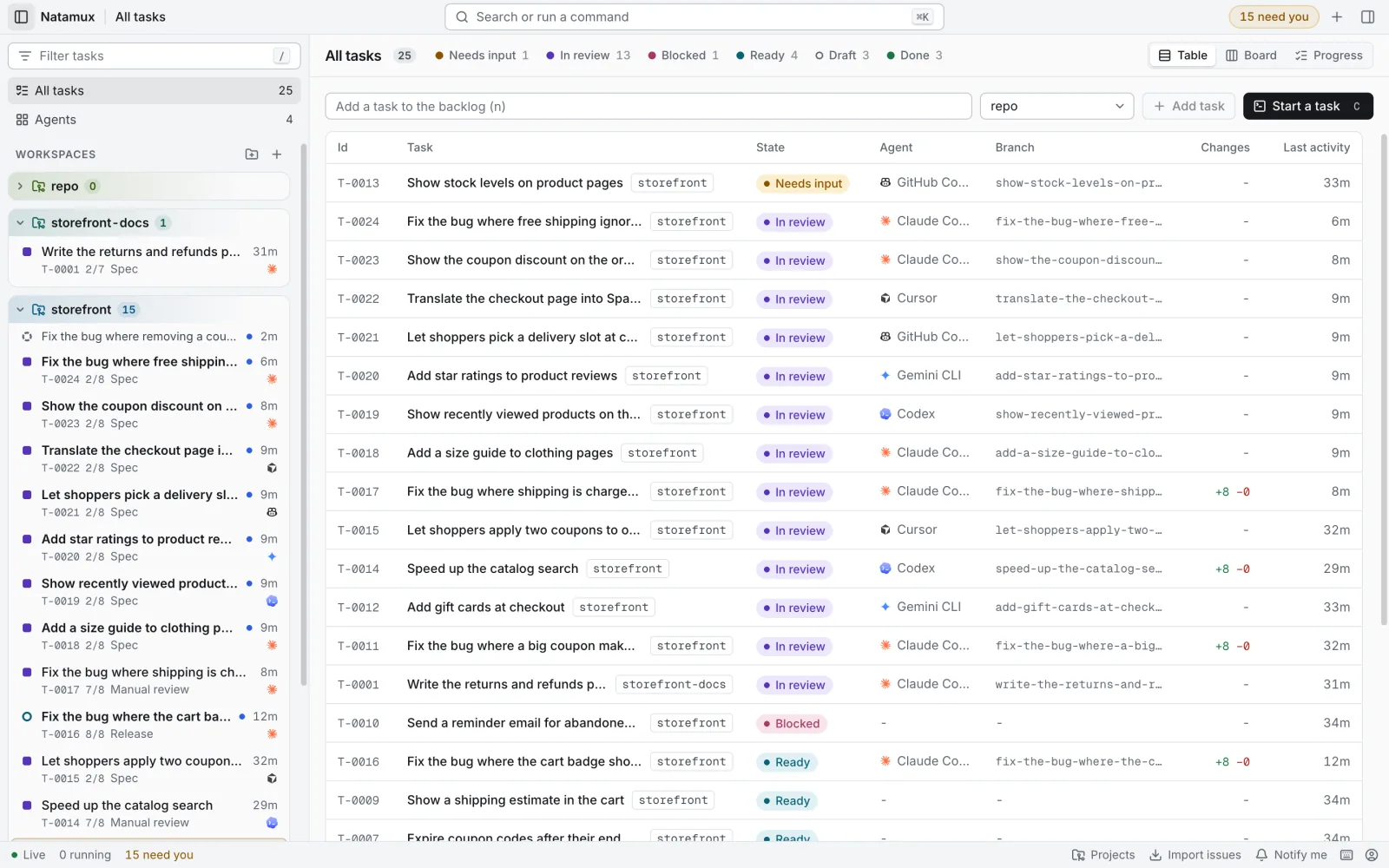
The dashboard is the web app of the Natamux daemon. It shows every task, every workspace and every agent on one page, and it updates live.
Layout
Section titled “Layout”The window has five parts.
| Part | What it holds |
|---|---|
| Title bar | The sidebar toggle, where you are, Search or run a command, the “N need you” chip, Start a task and the details toggle |
| Sidebar | A filter field, All tasks, Agents and Workspaces grouped by project |
| Main area | The task list as a table, board or progress view, or the open workspace |
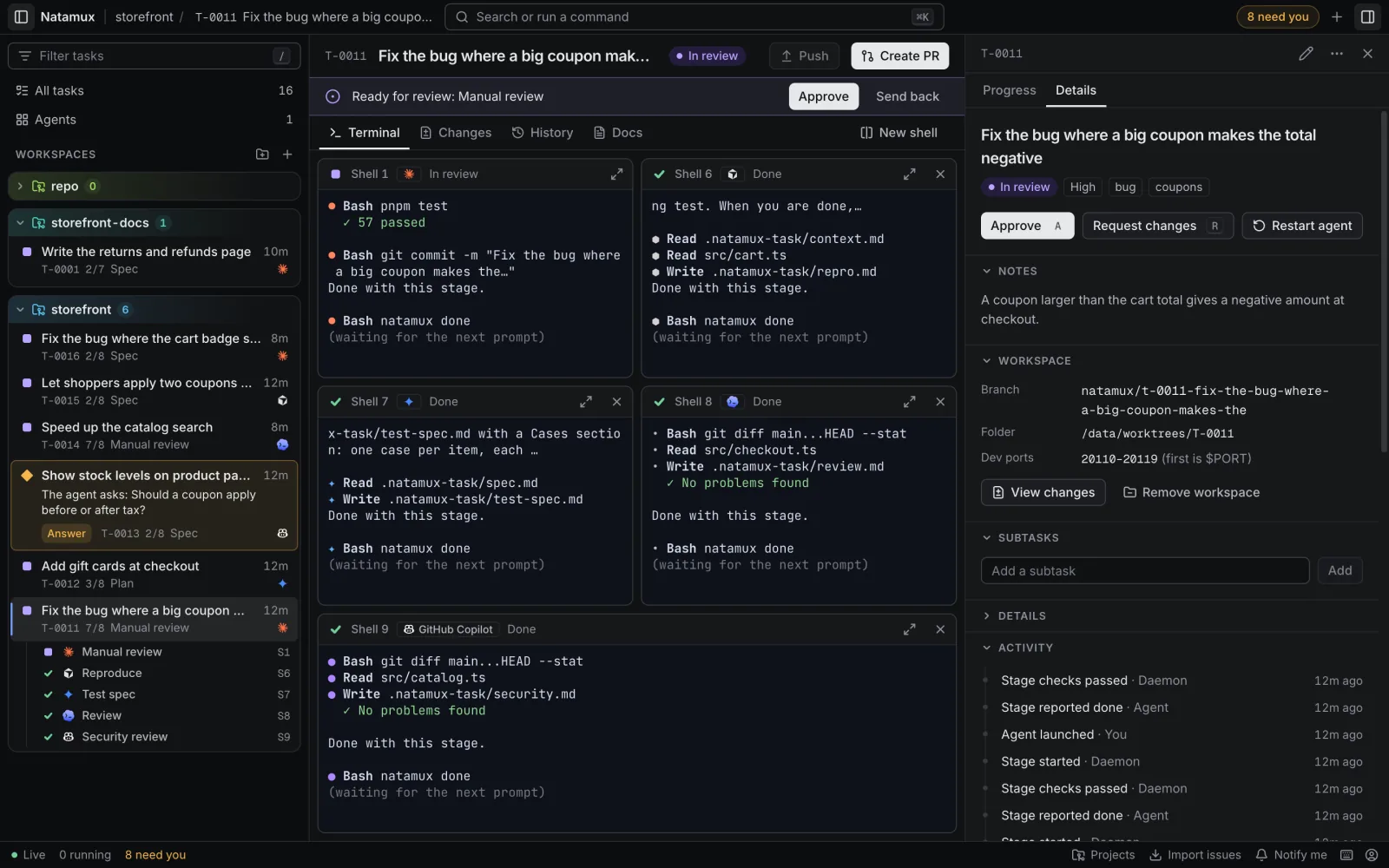
| Details panel | The selected task, in three views: Progress (its stages, with Approve), Files (the files of its worktree) and Details (notes, workspace, pull request, subtasks, tries) |
| Status bar | The connection state, running count, Projects, Import issues, Notify me, shortcuts and the account menu |
The details panel is open by default beside a workspace, so the stages stay in sight next to the terminal. In a narrow window, where the panel would cover the terminal, and for a task with no workspace, it starts closed. Open or close it with the title bar button (Show details / Hide details) or Mod+Alt+B. Natamux remembers your choice for each task. The palette command Show the task progress opens the details on Progress. The old link /w/<id>/progress does the same.
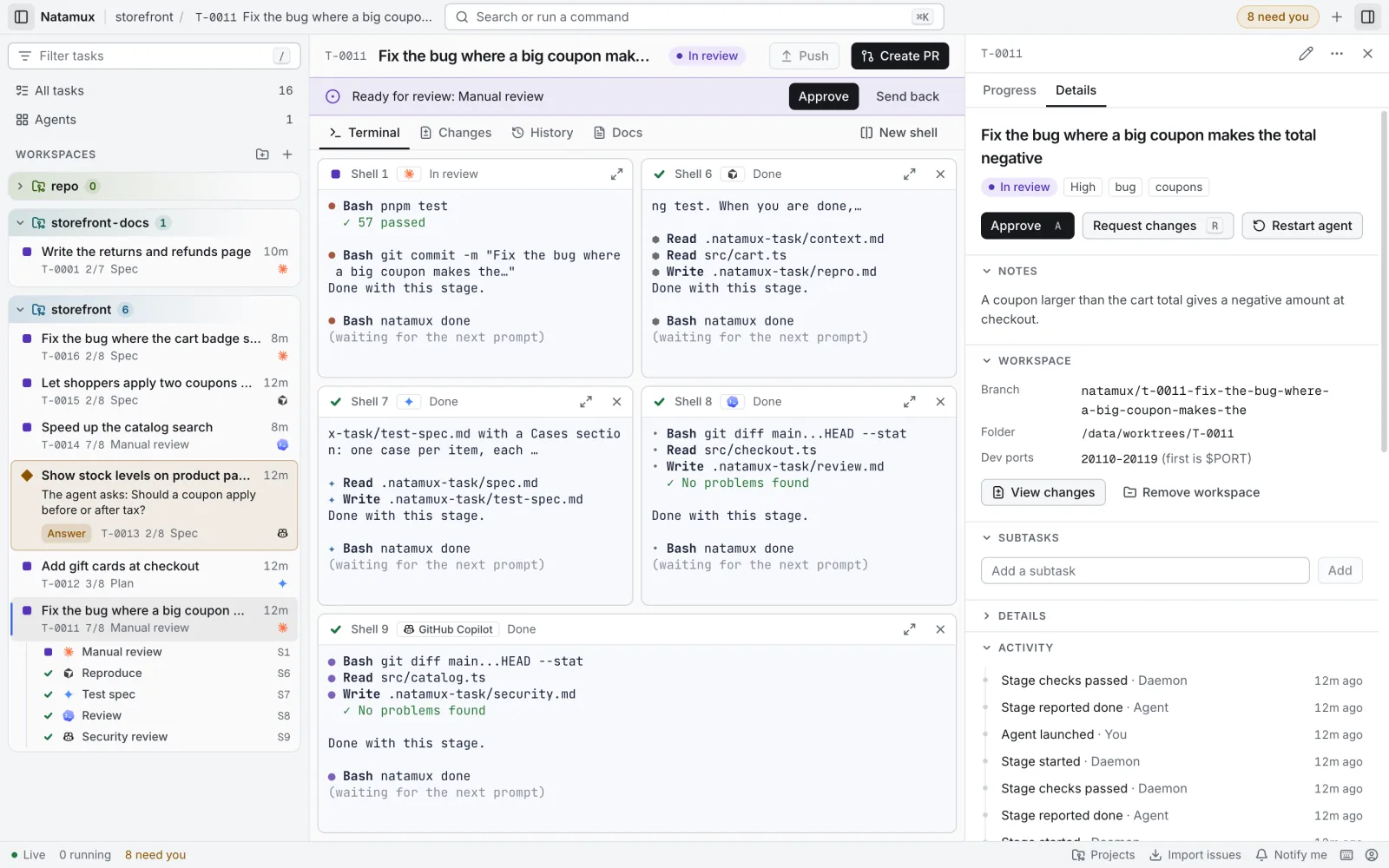
Under 768 px wide the status bar is hidden and the sidebar becomes a drawer. The status items move to the foot of the drawer.
Press Mod+B to hide or show the sidebar. Press Mod+Alt+B to hide or show the details. Mod is ⌘ on macOS and Ctrl elsewhere. Press F6 to move between the parts. Drag the edge of the sidebar or the details panel to resize it.
Files of the worktree
Section titled “Files of the worktree”The Files view of the details panel lists the files and folders of the task’s worktree. It shows only for a task with a workspace.
- Click a folder, or press
RightandLeft, to open or close it. A folder is read when you open it. - A changed file has the same letter and color as in the Changes tab. A folder with changes below has a dot.
- Drag a file or folder onto a terminal of the same task to type its path there, such as
src/app.ts. Natamux pastes it, so the agent gets it as one piece, and does not press Enter. A path with a space is quoted. This works where the details sit beside the terminal, in a wide window. - Click a file, or press
Enter, to open it in a tab of the workspace named after the file. Edit it and pressMod+Sor Save. Revert drops your changes and Close the file closes the tab. - An edit that is not saved stays when you switch tabs, files or tasks. The file shows edited in the list. The browser asks before you close the page.
- When the agent changes the file after you began to edit it, This file changed on disk. asks what to keep: Reload shows the new file and drops your changes, Keep mine lets the next save replace it.
- A binary file or a file over 1 MB is not shown.
.gitis never listed. The editor cannot make, rename or delete files.
Sidebar
Section titled “Sidebar”- All tasks shows the task list in the main area. The number is every task.
- Agents opens a grid of agent terminals. It starts with the agents that work or wait. Use Add a pane to add a task (up to 6 panes), and Columns to pick 1, 2, 4 or Auto. See The Agents view.
- Workspaces lists workspaces in folders, one per project. How much room a row takes follows what it needs:
- A task that waits on you, failed or is blocked is a tinted card. It shows the agent’s question, or why the task failed, on up to two lines. On a task that asks, Answer opens the terminal of the agent that asked.
- A task that works, waits for review or is ready has two lines: the title and age, then the task id, the step and stage (such as “3/5 Review”), the subtasks done, what the agent does now, the pull request and the agent’s icon. Hover the id to see the branch.
- A finished, cancelled or draft task is one short line.
- The icon before the title has its own shape for each state: a ring for ready, a dot that breathes while an agent works, a diamond for a question, a square for review, a triangle for a failure and a check for done. A blue dot marks a change you have not seen yet.
In the workspace list:
- Each project is a card in its own color, with its workspaces inside. The color comes from the project id, so it stays the same. Click a project to fold or unfold it. Click + next to it for Start a task in that project, or the gear for its Settings. Add a project and Start a task are in the section header. With no project, the sidebar says No projects yet and offers Add project.
- Right-click a project, press
Shift+F10, or click … next to it for Start a task, Settings, Blur names, Remove finished workspaces and Remove project. - To hide a project while you share your screen, click the eye next to it (Blur names). The names of the project, its tasks, subtasks, agents and finished workspaces blur, also in Pinned. The state of each task stays visible. Click the eye again (Show names) to see them. Natamux remembers the choice in this browser.
- Finished workspaces (done or cancelled) are folded under “N finished”. To clear them, click Remove finished workspaces on that row, or choose it in the menu of the project. Natamux asks first and lists the tasks. It removes the workspaces one after the other. A workspace with changes that are not committed is not removed, and the message names it. Pinned workspaces and other projects are not touched. One message reports the result. The tasks stay, and a branch with commits that are not merged stays.
- Only the open workspace shows the work under it: one row per shell, then its open subtasks. A folded task still shows its subtasks that wait on you, failed or are blocked. Click a task, or press
Righton it, to open it; the task that was open before folds. A shell row shows the state, the agent’s icon, the stage (or Shell 2 for an agent you started yourself), what the agent does and the shell (S1). A shell with no agent shows a terminal icon and its program, such as zsh. Click a shell row to open the task’s terminal on it. While a subtask is open, its parent stays open too. Natamux reads the shells of tasks that work or wait, and of the open workspace. - Double-click a title, or press
F2, to rename it. - Right-click a row, or press
Shift+F10, for View changes, Rename, Add subtask…, Pin to the top, Copy branch name, Copy folder path, Remove workspace and Delete task. Add subtask… asks for a title and adds a draft subtask of the task; a subtask has no such item. Remove workspace deletes the worktree and keeps the task. Delete task deletes the task, its notes and its history, and the worktree when there is one. Both ask first. Pinned workspaces move to a Pinned section at the top. - Press
Deleteon a row to remove the workspace. Natamux asks first, as described in When a task is finished. - A task that finishes while it is open keeps its row in place. It moves under “N finished” when you open another task.
When a task is finished
Section titled “When a task is finished”When a task is done or cancelled, Natamux says so once with a message. When the tab is in the background, a task that is done also shows a notification.
- A banner under the header says Task done. or Task cancelled. and what is left, with the next step as its main button: Commit… for files that are not committed, Push for commits that origin does not have, Create PR, or Open pull request while it is open. When nothing is left, the main button is Remove workspace. The banner shows on every tab.
- The Terminal tab shows the wrap-up instead of the shells. It lists the changes, the push, the pull request and the branch, each with a mark and a button when there is something to do. Under Shells are the shells that still run and the shells the task ended, with their agent and stage, and Show last screen.
- Remove workspace asks first. The dialog lists what goes and what stays:
- Files that are not committed stop it. The dialog lists them and offers View changes and Commit….
- It names a program that still runs, such as
nodein Shell 7, and the button then reads Stop it and remove. - Also delete the branch is on when the branch is merged. A branch with commits that are not merged always stays. A branch that GitHub merged with a squash goes too, once origin has all of its commits.
- The task, its notes, docs and history stay.
- The dialog stays open until the workspace is gone, and shows an error inside it. Then the task shows a summary with its pull request, its branch and when it finished, and Open pull request, Show progress and Start a follow-up task. Start a follow-up task opens Start a task in the same project, with a title that names the task.
Task views
Section titled “Task views”Pick a view with the Layout switch above the list.
| View | Shows |
|---|---|
| Table | One row per task. Click a column header to sort. |
| Board | One column per state. An empty column is folded to a narrow rail; click it to open it. Show finished adds the done and cancelled columns. |
| Progress | Tasks against their stages |
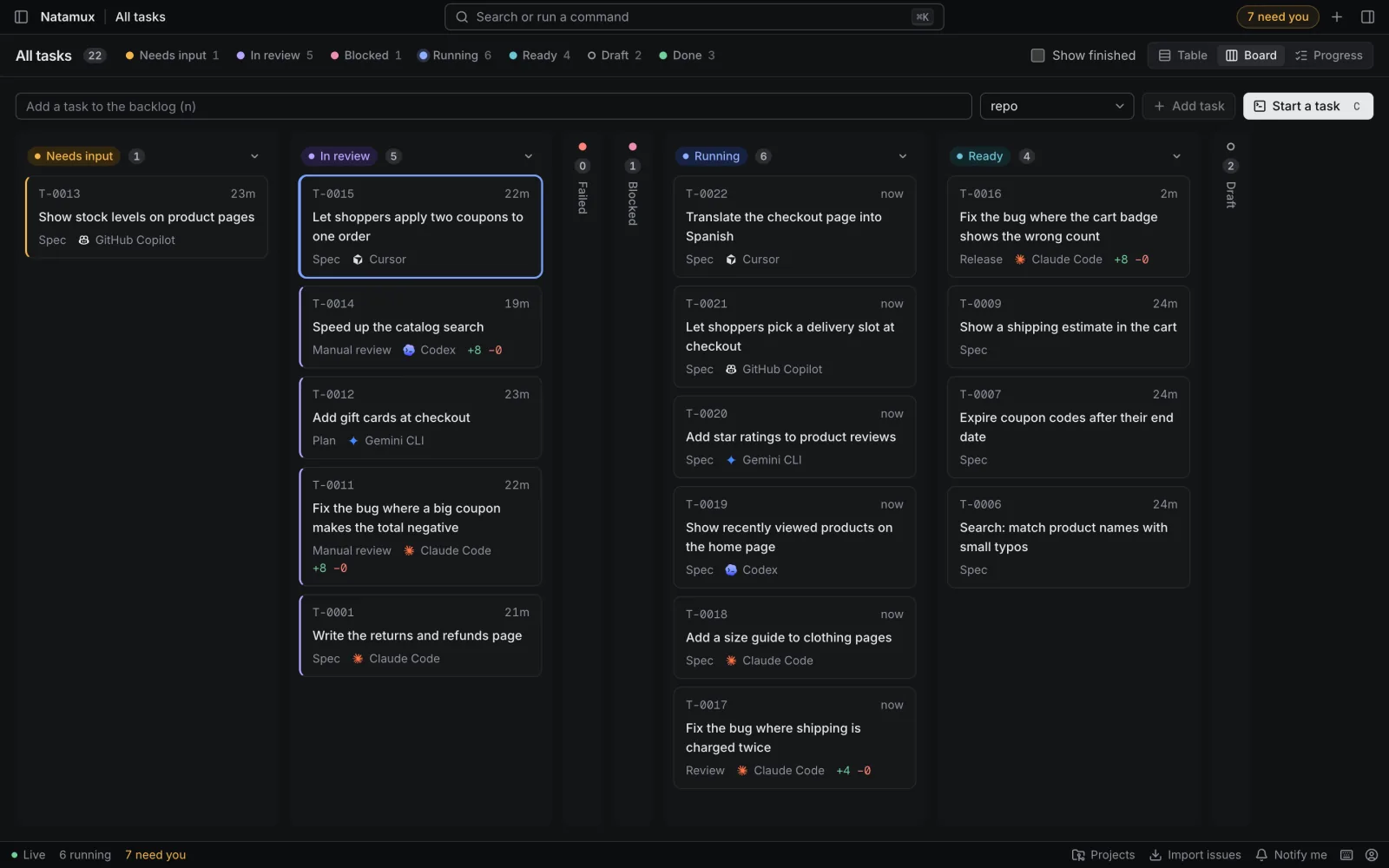
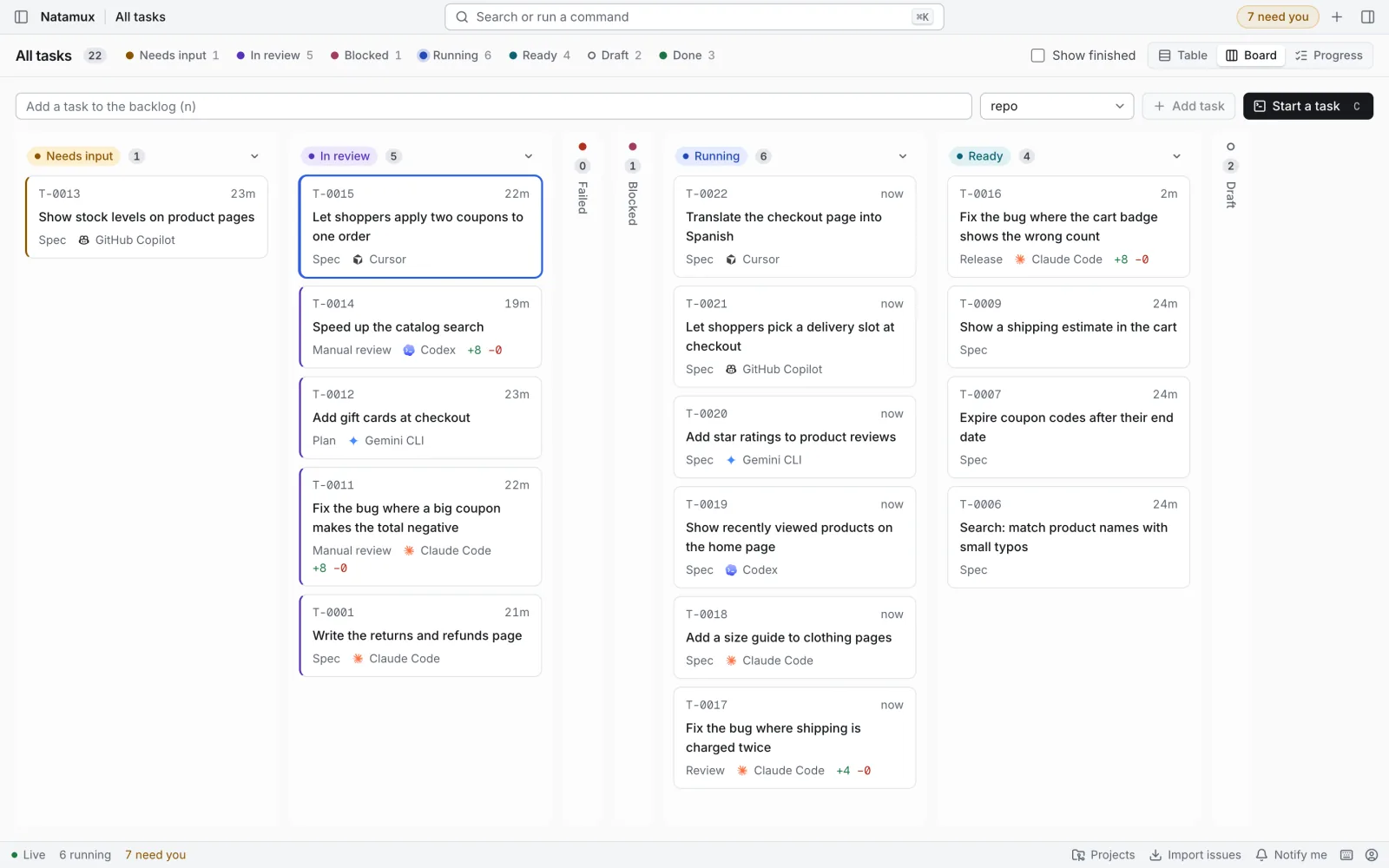
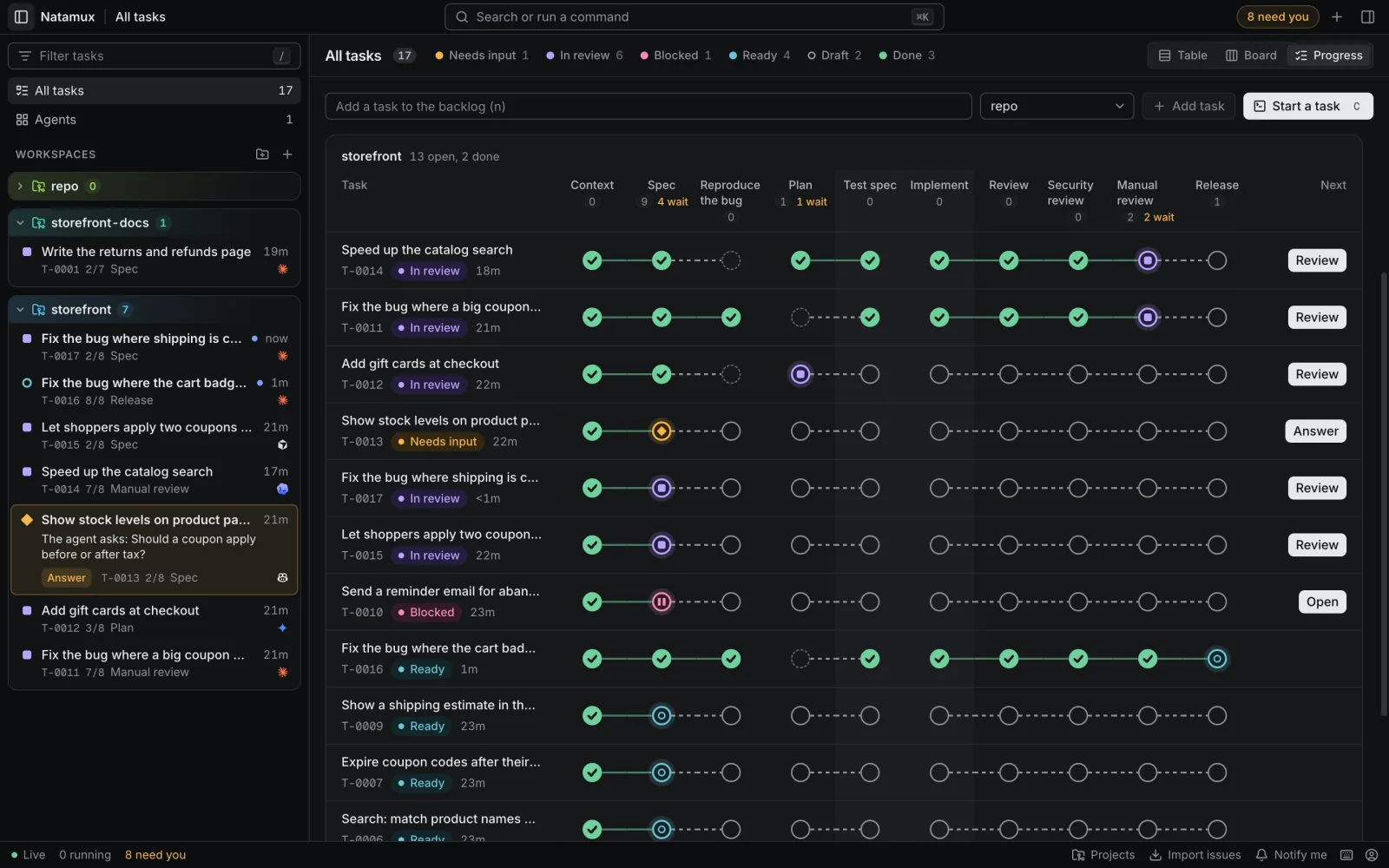
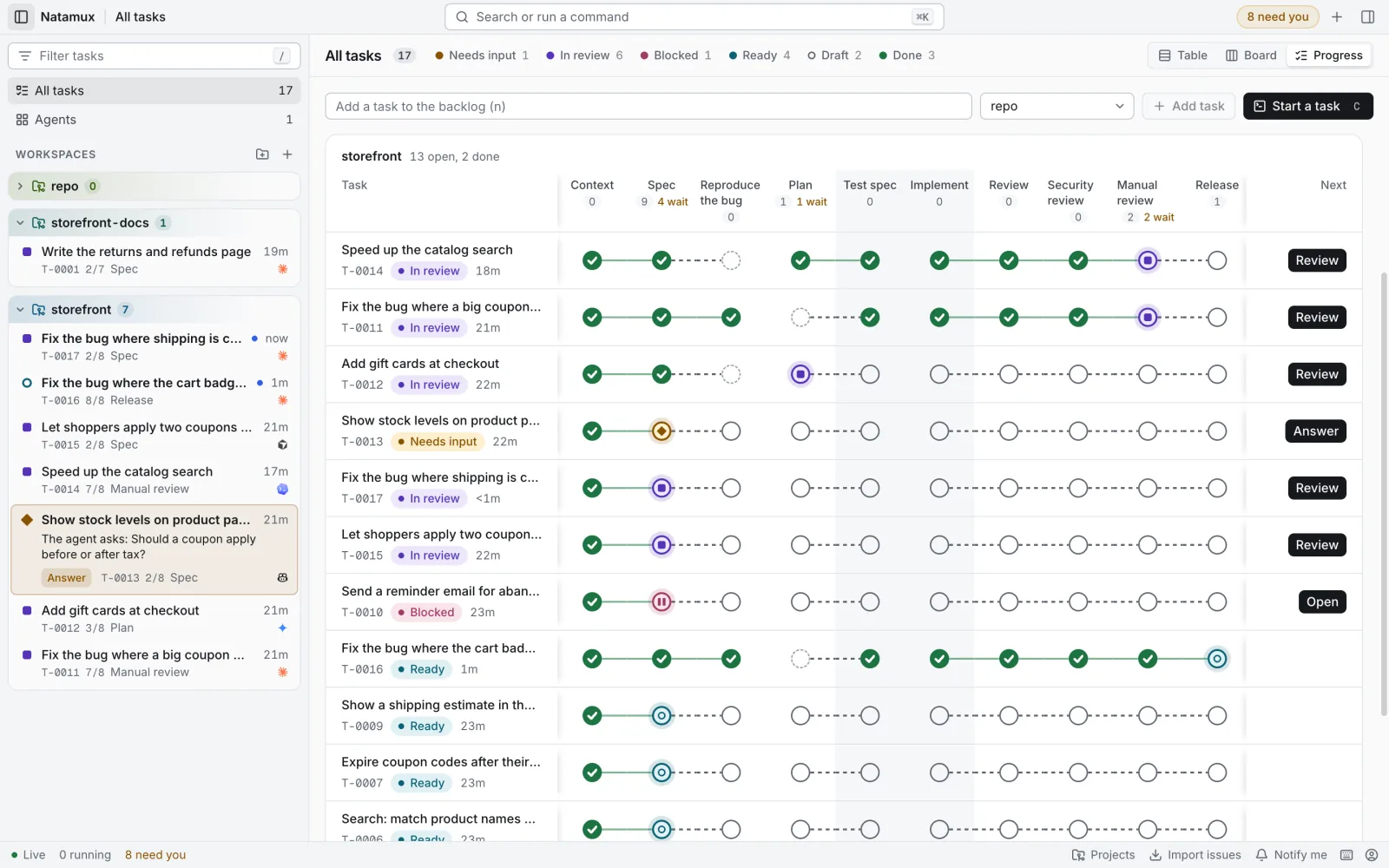
The table columns are Id, Task, State, Agent, Branch, Changes, PR and Last activity. A narrow window shows fewer columns. Below 560 px wide each task is a card. Changes and PR appear only when some task has a value.
The default order puts what needs you first: Needs input, In review, Failed, Blocked, Running, Ready, Draft, Done, Cancelled.
Click a row to select it and open its details. Double-click, or press Enter, to open its workspace. The workspace opens on the terminal while an agent works, and otherwise on the tab you used last.
Right-click a row, or press Shift+F10, for Open workspace, Show details, Add subtask…, the actions for its state (such as Retry, Approve or Start agent), the copy items, Cancel task and Delete task. Add subtask… asks for a title and adds a draft subtask; a subtask has no such item. Both ask first. Cancel task marks the task cancelled and keeps it in the list. Delete task removes the task, its notes and its history.
Add a task
Section titled “Add a task”- Press
n, or click the field Add a task to the backlog (n). - Type a title.
- Press
Enter, or click Add task.
The task is created as a draft and selected. The field empties at once, so you can type the next title.
Two lists appear next to the field when they have something to choose:
- Project, when you have more than one project.
- Template, when you saved a template. Choose No template to skip it. Save a template from the More actions menu of a task: Save as template.
To start work right away, click Start a task next to Add task, or press c. It uses the title you typed, makes a git worktree and a task, and can start an agent in it. See Workspaces.
In the details panel you can edit a task (Edit, or e), add subtasks, and use the actions for its state, such as Mark ready, Approve or Retry. Cancel task and Delete task, in the … menu, both ask first.
Filter and search
Section titled “Filter and search”- State chips above the list filter by state. Each chip shows its count. Click a chip again to clear it. In a narrow window the chips fold into one State menu.
- Filter tasks in the sidebar (press
/) filters the list and the workspaces. It matches the id, title, agent, branch and labels.Escclears the field. - When nothing matches, Clear filter resets both the search and the chip.
Command palette
Section titled “Command palette”Press Mod+K or F1, or click Search or run a command. Type to search tasks, commands and projects.
| You type | Result |
|---|---|
| Nothing | Needs you, recent workspaces and suggested commands. With a Needs you or project scope, only the tasks of that scope that wait for you |
> and text |
Commands only |
# and digits |
Tasks by id |
| Text with no match | Add a task or Start a task with that text as the title |
Press Enter to open a row. Shift+Enter adds a task to Agents. Alt+1 to Alt+9 pick a row by number. Tab changes the scope: Needs you, then each project that has a task, then no scope. Typed text searches inside the scope. Click the chip’s X, or press Backspace with nothing typed, to remove it.
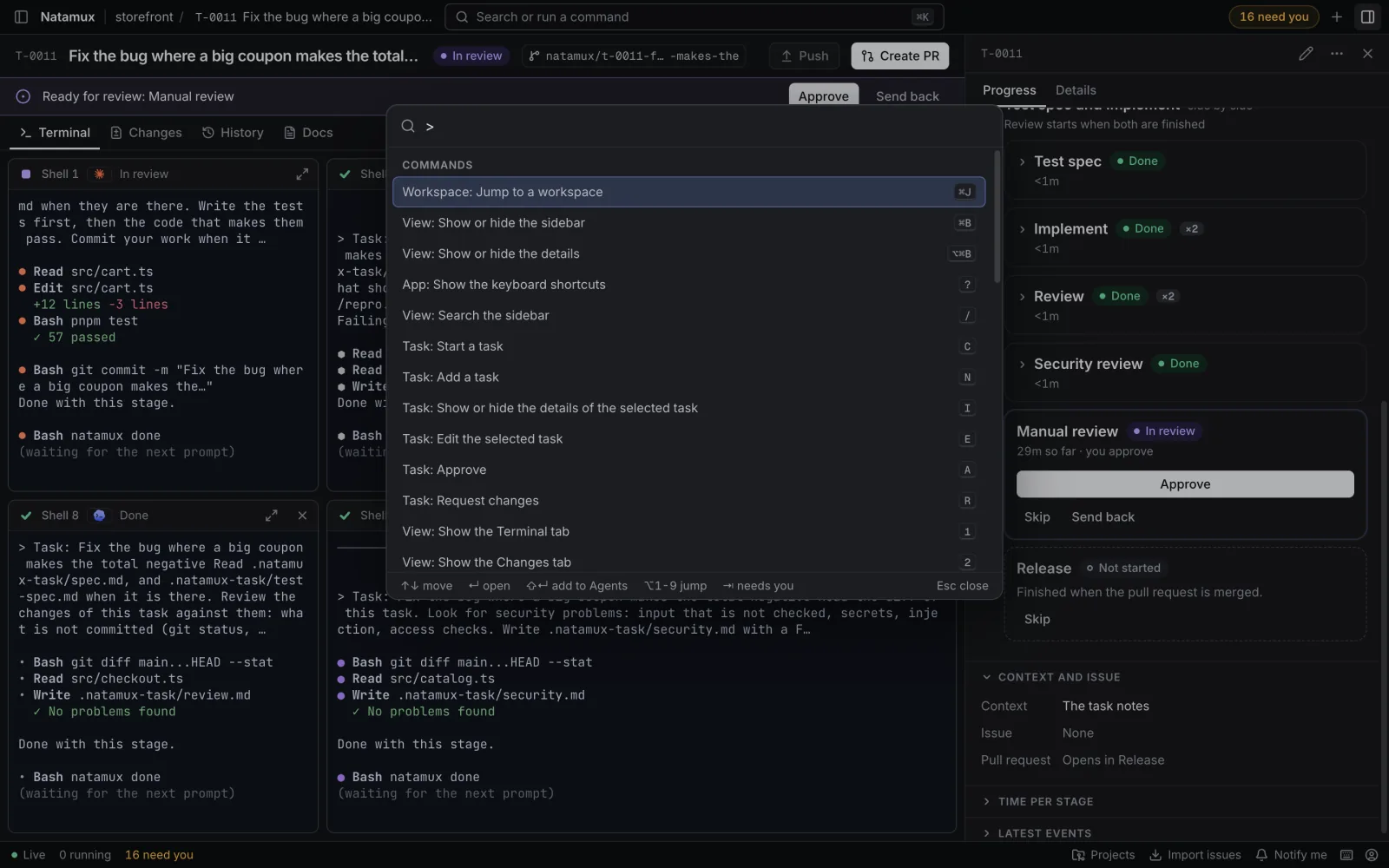
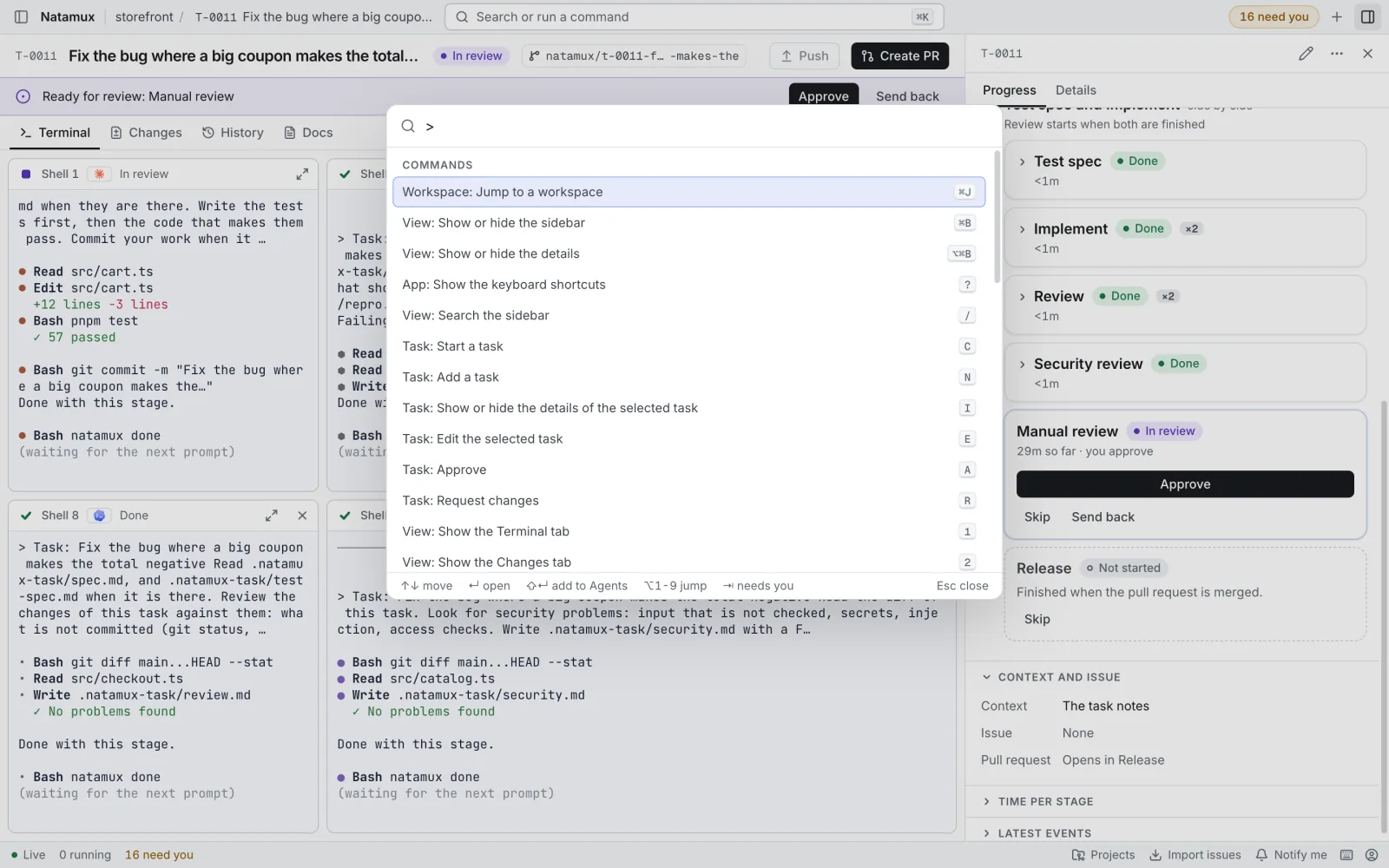
Press Mod+J for Jump to a workspace. It lists workspaces and their extra shells, with the ones that need you first.
The palette also changes the view (All tasks, Agents, table, board, progress), the theme, the text size, and runs Add a project and Import GitHub issues. See Keyboard shortcuts for every key.
Task states
Section titled “Task states”| State | Icon | Meaning |
|---|---|---|
| Draft | Dashed ring | A task in the backlog. |
| Ready | Ring | Marked ready to start. |
| Running | Full disk that blinks | An agent works on it. |
| Running, but quiet | Half disk in amber | It runs, but the agent has been silent for 10 minutes. |
| Needs input | Diamond | The agent asked a question, or ended its turn without natamux done. |
| In review | Rounded square | Work is ready for you to review. |
| Blocked | Two bars | You or Natamux blocked it. |
| Failed | Triangle | The agent or a stage failed. |
| Done | Check | Finished. |
| Cancelled | Dash | Cancelled. |
See Status icons for every icon and what to do about it, and Tasks for how a task moves between states.
Needs you
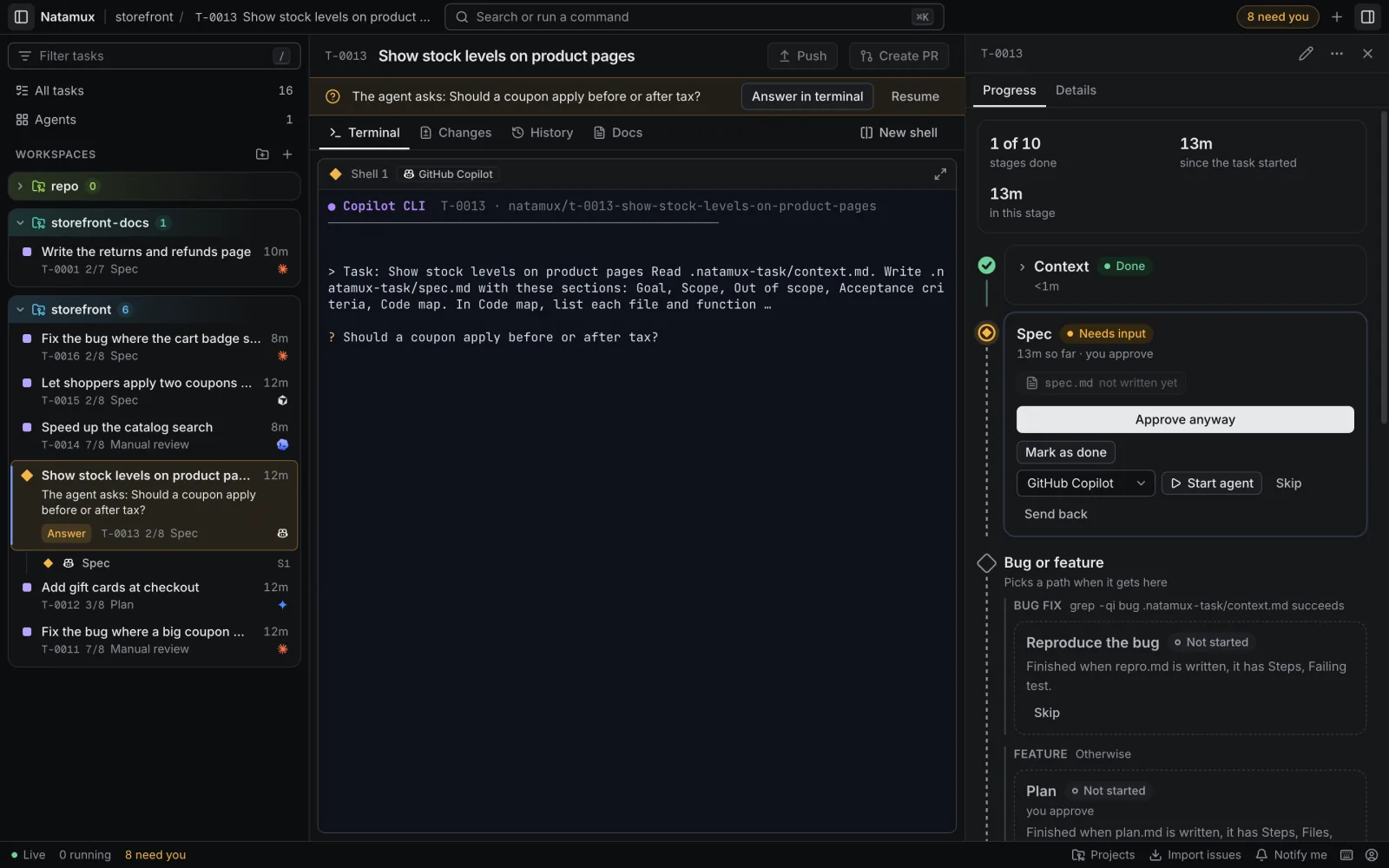
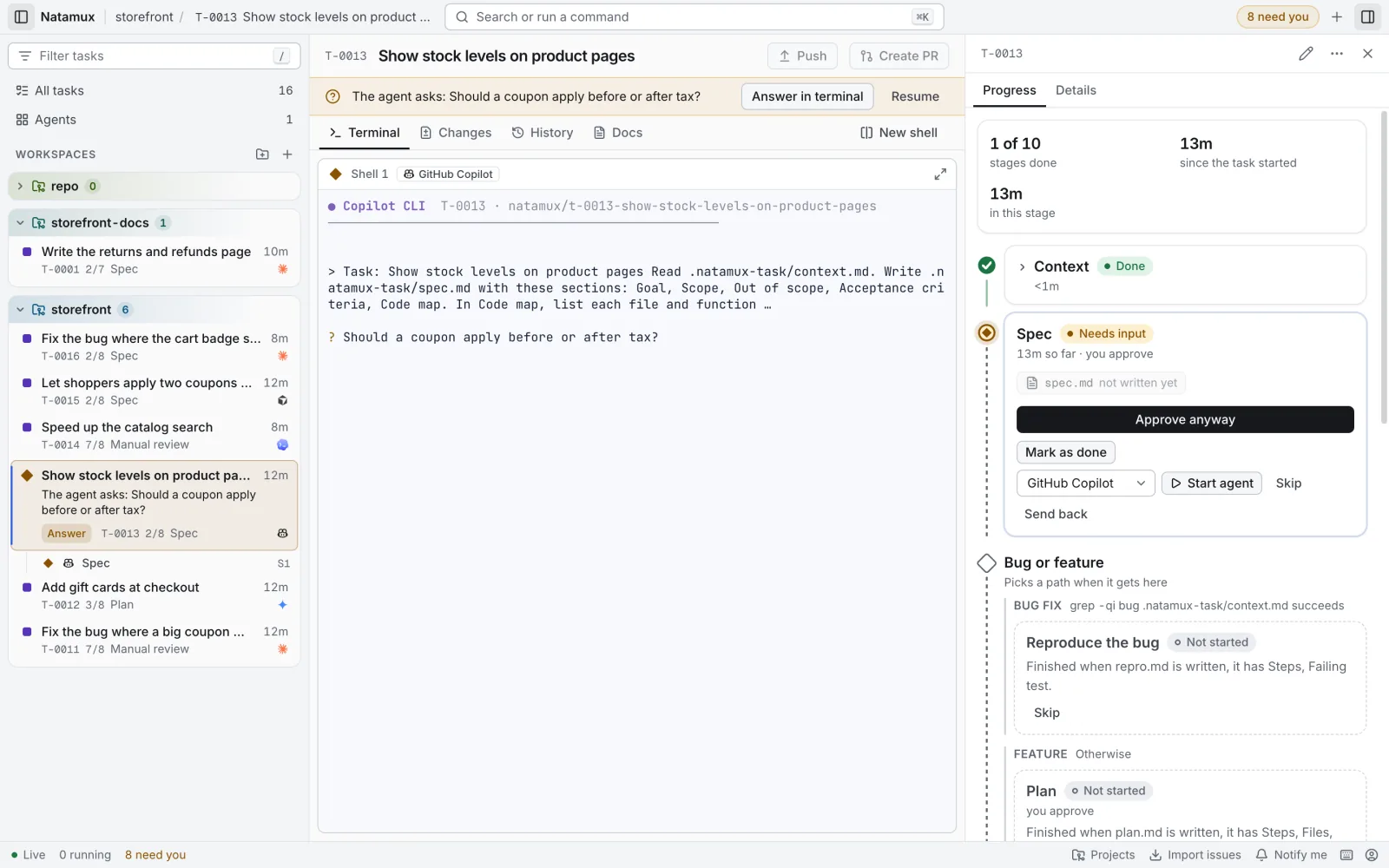
Section titled “Needs you”A task needs you when it is in Needs input, In review, Failed or Blocked state, or when it is running but has shown no sign of life for 10 minutes (it shows as quiet).
- The title bar shows a chip such as “2 need you”. The status bar shows it too. Click either one to open a palette of those tasks, tasks without a workspace too. The chip ignores the filter.
- In the sidebar, a task that waits on you, failed or is blocked is a tinted card with the agent’s question. See Sidebar.
- The browser tab title shows the count:
(2) Natamux.
A running task whose agent waits for background work, such as a test run in a background shell, is not quiet and is not listed. See Waiting for background work. A task whose workspace was removed no longer needs you.
Notifications
Section titled “Notifications”Click Notify me in the status bar to allow system notifications. When a task starts to wait for you, or is done, while the dashboard is not in front, you get a notification titled with the task id and state, such as T-0003: Needs input or T-0003: Done, with the task title as text. Click it to bring the dashboard forward and open the task. A cancelled task does not notify.
Natamux does not notify about tasks that already waited when you opened the dashboard.
The button is gone once you decide. If you blocked notifications, the status bar says Notifications are blocked. Allow them in the site settings of your browser.
Repositories
Section titled “Repositories”Click Projects in the status bar, or Add a project in the sidebar, to see the projects (git repositories) the daemon manages. To add one:
- Enter the Folder, a full path on the machine that runs the daemon. In the desktop app, Browse… picks it in a folder dialog.
- Optionally enter a Name. The folder name is used otherwise.
- Optionally change the Worktree folder, where the worktrees of the project’s tasks go. It starts with the daemon’s worktree folder. Use a full path; Natamux makes the folder if it is not there. Workspaces made before keep their place. To change it later, remove the project and add it again.
- Click Add project.
The list shows the worktree folder of each project that has its own.
Each project has a Settings button (the gear next to +) and a Settings item in its menu. See Project settings.
To remove a project, choose Remove project in the menu of its group in the sidebar. Remove its workspaces first. Natamux only forgets the repository: the folder, its branches and its tasks stay. Add the folder again with the same name to get its tasks back. Any project can be removed. With no project left, the sidebar offers to add one.
Project settings
Section titled “Project settings”Click the gear next to a project, or Settings in its menu, to open Project settings of <repo>. The Stages tab edits the pipeline of the project: add stages from the catalog, run stages side by side, choose which ones wait for you, and pick the agent of a stage such as Review. The Issues tab sets when Natamux opens a GitHub issue for a task. The JSON tab edits the whole .natamux.json file. See Project settings.
Import issues
Section titled “Import issues”Click Import issues in the status bar to turn open GitHub issues into draft tasks. See GitHub.
Settings
Section titled “Settings”Settings gathers the app-wide settings in one dialog. Open it with Settings… in the Account menu, Mod+,, or Settings… in the OS menu of the desktop app. Changes apply at once.
- Appearance: Theme, UI size and Terminal font…, the same as in the Account menu.
- Desktop app, in the desktop app only: Keep computer awake while agents run and Check for updates automatically, the same as the ticks in its menu. See Desktop app.
- Projects: a Settings button per project opens its Project settings.
Account menu
Section titled “Account menu”The account icon at the right of the status bar opens a menu.
- Settings…, also on
Mod+,: opens Settings. - Theme: System, Light or Dark.
- UI size: Compact, Default or Large.
- Terminal font…: the font family and size of the terminals. See Font and drawing.
- Keyboard shortcuts, also on
?. - Report an issue: opens a new issue on the Natamux repository on GitHub, in your browser.
- Sign out, in a browser only: removes the daemon token from this browser. Natamux asks first. Your tasks keep running. The desktop app has no Sign out, because it signs in by itself.
Sign in
Section titled “Sign in”The first time, the dashboard asks for the Daemon token. Paste the token the daemon printed when it started. It stays in this browser. Sign out removes it. The desktop app signs in by itself and never asks.